
VIP tiers
Tiers reward your best customers without any manual work: the more a customer earns, the higher they climb, and the faster they start earning compared with everyone else. You set them up per card, in Dashboard → Cards → Tiers (open the card and pick the tab). They are optional: if you create none, your program works the same and every customer earns at the same pace. Only the owner or an admin can change them.
Create your tiers
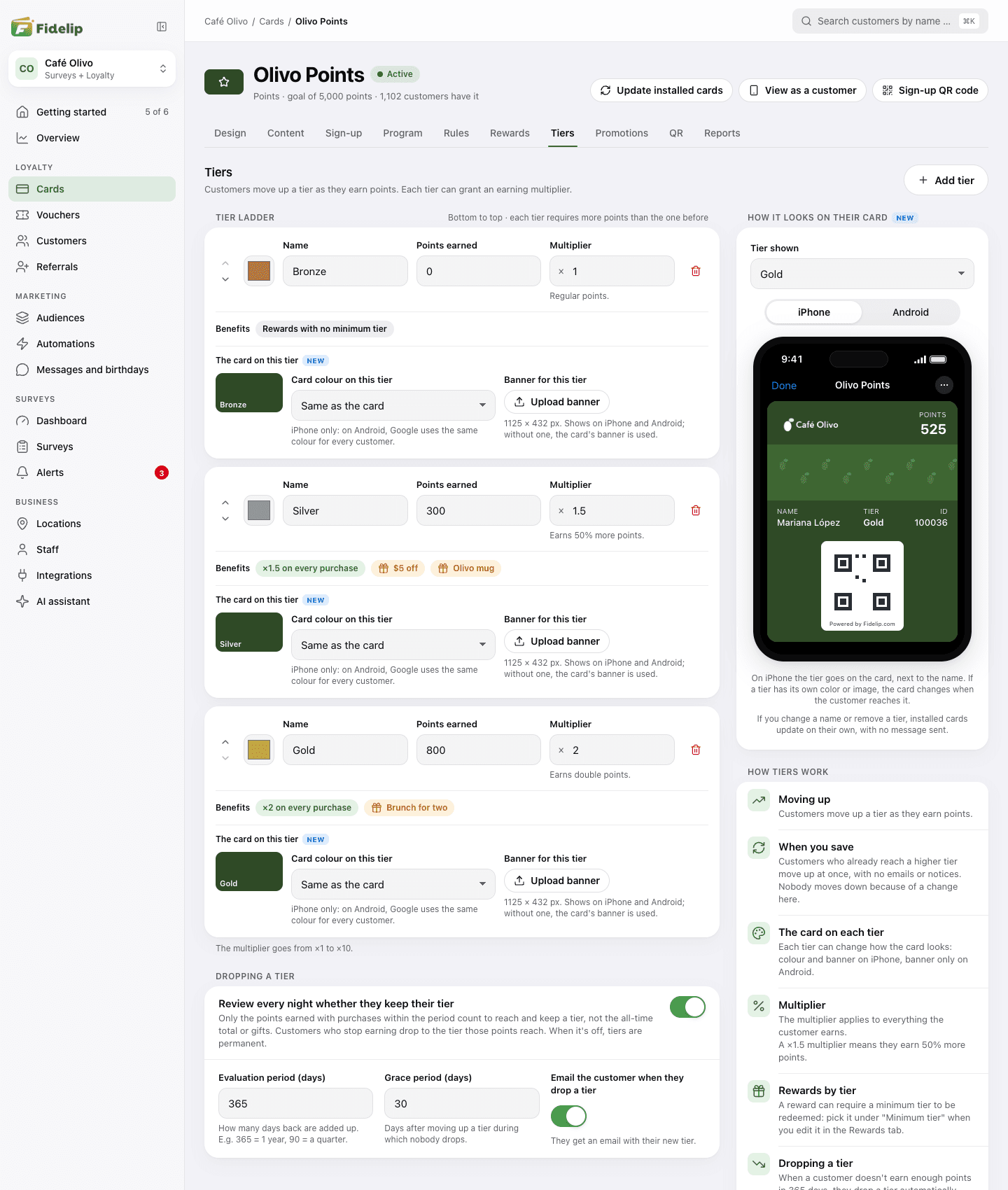
A tier is a name, a goal and an earning multiplier. To create one, click Add tier: a new row appears at the end of the Tier ladder. You can create as many as you like (three is typical: Bronze, Silver and Gold). They run from lowest to highest: the first one in the list is the lowest, and each tier has to require more than the one before it. Move them around with the arrows on each row.
| Field | What it means |
|---|---|
| Tier color | The color swatch on the row, used to tell the tier apart in this tab. It does not change the customer’s card; that is set separately, in “The card on each tier” (further down). |
| Name | The name your team and your customers see (it is also printed on their Wallet card). E.g. Bronze, Silver, Gold. Every tier needs a different one. |
| Points earned or Stamps earned | The goal to reach the tier, depending on the card type. It is measured on what the customer has earned (sales and bonuses) since signing up, not on their available balance; with automatic reset turned on, only the purchases inside the period count (see “How a customer moves up”). Every tier has to require more than the one before it. |
| Multiplier | How much more the customer earns while on that tier. ×1 = no bonus; the maximum is ×10. Under the field you can read what it does, for example “Earns 50% more points”. |
Under each tier, the Benefits line sums up what it gives: its multiplier and the active rewards that ask for it as their minimum tier.
Changes do not save themselves: as soon as you edit something, a bar appears at the bottom saying You have unsaved changes, with Discard and Save changes. Discard undoes everything you have not saved, including the Dropping a tier settings. If something does not add up (an empty or repeated name, a goal that does not go above the tier before it, a multiplier outside ×1 to ×10), we explain it under the field and nothing saves until you fix it.
Earning multiplier
The multiplier is what makes climbing worth it. It applies to everything the customer earns at the counter while on that tier (the sales your team records; survey, birthday or referral bonuses are not multiplied):
- ×1: no bonus. The customer earns like anyone else (useful for the entry tier).
- ×1.5: earns 50% more. If a purchase used to give 100 points, it now gives 150.
- ×2: double. You can go up to ×10, although high values make your program much more expensive.
On a points card the multiplier can have decimals. On a stamp card it only accepts whole numbers (×2 means double stamps): a stamp cannot be split in half.
It applies after your time-based promotions and multiplies with them: with a ×2 promotion and a customer on a ×1.5 tier, that purchase earns ×3. The result is rounded down to a whole number. Two card settings change this: in the Promotions tab, a promotion can switch off the tier bonus while it runs (the Combines with the tier multiplier switch), and in the Program tab the Total multiplier cap field sets the most an earn can be multiplied by promotions and tier together. On points cards, the app shows the cashier what the customer will receive, multiplier included, before confirming.
Rewards exclusive to a tier
A reward can require a minimum tier before it can be redeemed. You pick it when you create or edit the reward, in Dashboard → Cards → Rewards, with the Minimum tier field: leave it on All customers so anyone can redeem it, or choose a tier so only customers on that tier or a higher one can. The field appears once the card has tiers, and in the rewards list the exclusive ones carry the label “Requires Gold tier”.
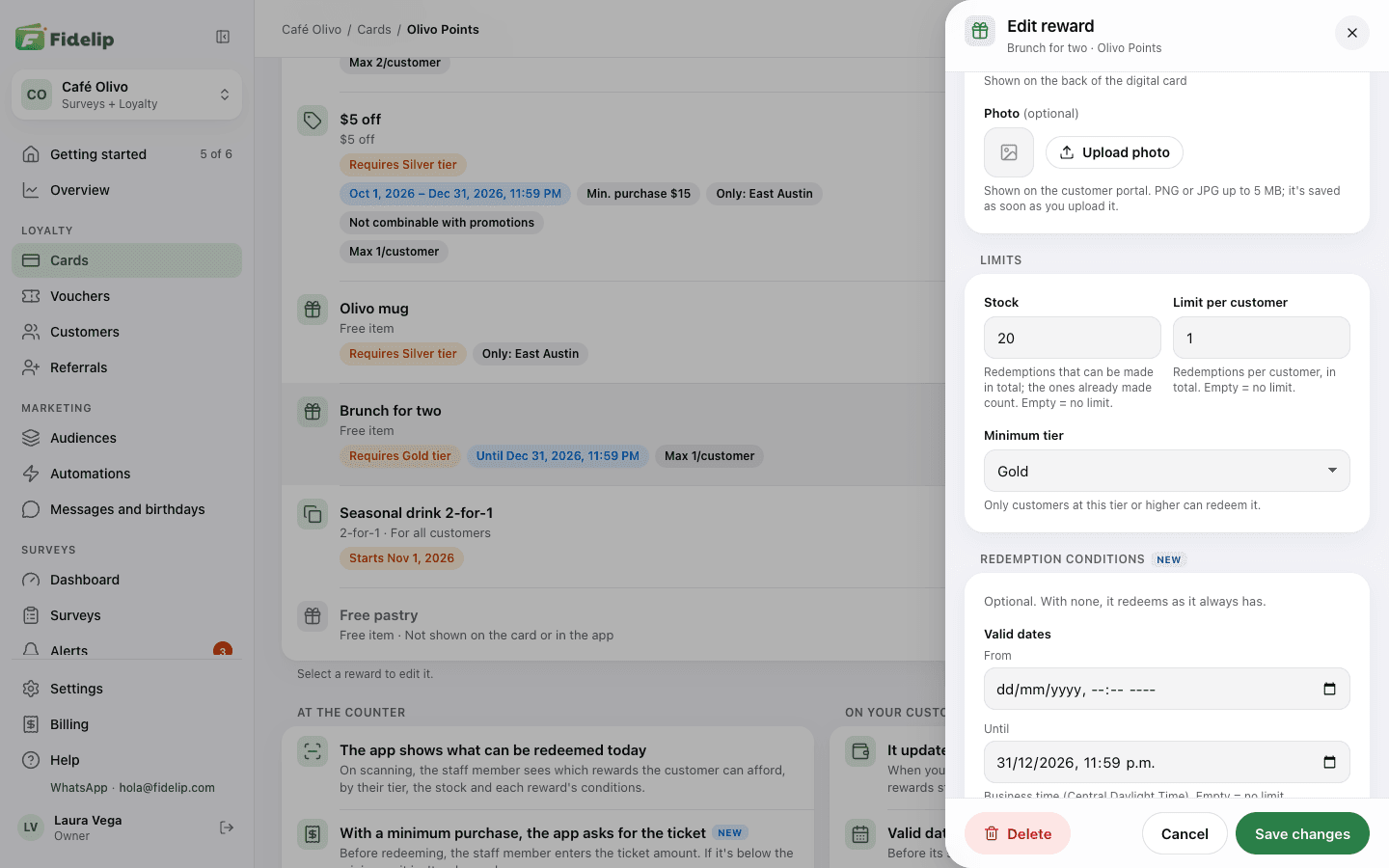
In the app, when redeeming, those rewards show as locked in the Coming up list, with the notice “Requires Gold tier” for anyone who is not on that tier, and the redemption is refused if attempted, even if the customer has plenty of balance. That way you reserve your best prize for your best customers.
The birthday gift can also ask for a tier: in Dashboard → Referrals, under Give a birthday gift, the Minimum tier for the gift field.
Delete a tier
To remove a tier, use the trash can on its row. Until you save, the tier shows in a red notice (“will be deleted when you save”) with an Undo button. If the tier you remove has customers, exclusive rewards, the birthday gift, automations or scheduled messages, before saving we show you what will happen and ask you to confirm.
- Its customers move to the tier right below. If there is none below, they are left with no tier until they next earn, when they get the one that matches what they have earned. Nobody moves up because you delete another tier.
- Its exclusive rewards move to requiring the tier right above. If you deleted the top tier, the reward is turned off; if you turn it back on, it will require the highest remaining tier. If you delete every tier, the reward is turned off and no longer requires a tier.
- If the birthday gift is on and required that tier, it moves to requiring the tier right above; if it was the top one, the gift is turned off.
- Automations and scheduled messages aimed at that tier are not moved to another one: they are left with no recipients until you choose another tier. The confirmation names the automations of that card and the ones set to “All my cards” that are left with no tier.
- No customer gets an email, notification or card message because of this change.
If you rename a tier, the scheduled messages and automations of that card that use it pick up the new name. An automation set to All my cards picks it up too, unless another of your cards has a tier with the old or the new name; in that case, review it. The automations of your other cards do not change.
The card on each tier
Each tier can change how its customers’ Wallet card looks. On the tier’s row, the block titled The card on this tier has:
- Card colour on this tier: Same as the card changes nothing; Own colour lets you pick the color and, under Text colour, Automatic text (white or black, whichever reads better), White text or Black text. The color only changes on iPhone: on Android, Google uses the same color for every customer.
- Banner for this tier, with Upload banner, Change banner and Remove: a 1125 × 432 px image (PNG or JPG, up to 5 MB) that shows on iPhone and Android; without one, the card’s banner is used. It saves as soon as you upload it (not with the save bar), and the tier has to be saved first. Stamp cards use the card’s banner on every tier.
Next to the ladder, How it looks on their card draws the card of a customer on that tier inside a phone, with what you are editing even if you have not saved it yet. With Tier shown you pick the tier, and with iPhone or Android the phone. On iPhone the tier goes on the card, next to the name; on Android it appears in the details, below the card. On the back, the customer sees how much is left for the next tier. If you change a name or delete a tier, installed cards update on their own, with no message sent.
How a customer moves up
Promotion is calculated on what the customer has earned on that card. While automatic reset is off (the usual case), that is everything earned since signing up: the sales your team records (by scanning their QR or by adding without a QR) and the bonuses the customer gets for answering a survey, for their birthday, for referring someone or from your automations. The only thing that adds to the balance without moving the customer closer to the next tier is a manual balance adjustment: gifting points by hand does not move anyone up a tier. That total never goes down when the customer redeems a prize, so spending points never costs them their tier. The one exception is undoing a sale within its 10 minutes: what that sale added comes out of the total and, if it had moved the customer up, they go back to the tier they reach without it. We do not send them an email or a message for that change; if you have an active message on the card that shows their tier, it updates to the real tier. With automatic reset on, only the purchases inside the period count (see below).
- The customer earnsEvery sale your team records and every bonus the customer gets (survey, birthday, referral or automation) adds to that total.
- We check the goals instantlyIf the total reaches the goal of a higher tier, the customer moves up at that very moment. They never move down this way: promotion only goes up.
- The new tier is protectedMoving up starts a grace period (30 days by default) during which automatic reset will not drop them (only undoing, within its 10 minutes, the sale that moved them up).
In the app, when you scan a customer, under each of their cards you see their tier and how much is left for the next one (“Silver · 200 more for Gold”). It is good material for a counter line: “you’re 200 points from Gold”.
Dropping a tier (automatic reset)
By default tiers are permanent: someone who reached Gold stays on Gold forever (unless the sale that moved them up is undone within its 10 minutes). If you would rather have customers keep earning their tier, turn on the Review every night whether they keep their tier switch, in the Dropping a tier section of the same tab. It is one policy for the whole card, not per tier.
| Setting | What it does |
|---|---|
| Review every night whether they keep their tier | The switch. Off, tiers are permanent and nobody drops for inactivity. On, every night we check how much the customer bought in the period and place them on the highest tier they still deserve. |
| Evaluation period (days) | How many days back are added up (e.g. 365 = 1 year, 90 = a quarter). Turning the switch on suggests 365. Without a number it cannot be saved: type one or turn the review off. |
| Grace period (days) | Protected time after moving up a tier: during those days the customer cannot drop. The default is 30. It also starts over when someone drops, so they do not fall two steps in a row. |
| Email the customer when they drop a tier | Sends the customer an email with their new tier when they lose one. It only controls that email: turning it off changes nothing else. |
With the review on, what counts changes: to move up and to keep a tier, only the points (or stamps) earned with purchases inside the period count, by scanning the QR or by adding without a QR, leaving out undone sales. The all-time total does not count, and neither do bonuses, gifts or manual adjustments. That is why a customer who stopped coming drops even if their all-time total is huge.