
Card notifications
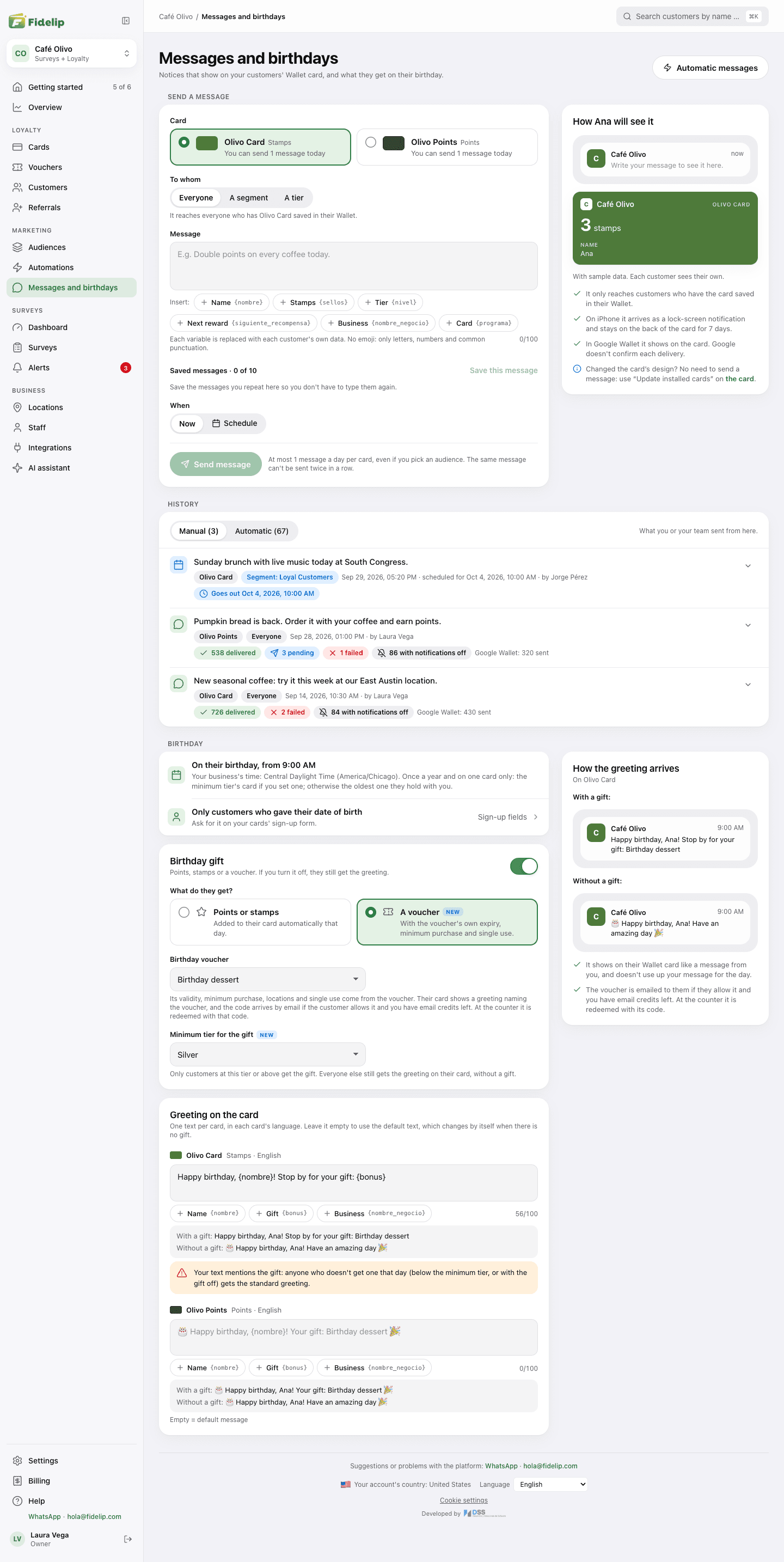
When a customer saves your card in Apple Wallet or Google Wallet, you can send them a short notice. On an iPhone it shows on the lock screen and stays on the back of the card for 7 days; in Google Wallet it shows on the card. They do not need to install any app: the card already in their wallet is the channel. Everything is in Dashboard → Messages and birthdays, in three blocks: Send a message, History and Birthday. Only the owner or an admin can send messages and change the birthday settings; everyone else can look at the page but not change anything.
Send a message
- Pick the cardIn Card. If you have more than one program (a coffee stamp card, a food points card), each one is a separate card and is sent on its own; with a single card there is nothing to pick.
- Choose who gets itIn To whom: Everyone, A segment or A tier. A line below tells you who will receive it. More on this below.
- Write the messageIn Message, at most 100 characters. The counter turns orange past 80. Next to the form you see how it will look on the card, with sample data.
- Choose whenIn When: Now or Schedule. With Schedule, a Date and time field appears, in your business’s time even if you are in another time zone: for example Friday at 11:00 a.m. It does not accept a time that has already passed.
- Send itClick Send message; if you scheduled it, the button shows when it goes out. If the button is off, something is missing (the message, the segment or the tier) or that card has already sent today, and the page tells you which.
. , ! ? : ; ( ) % # / $ @ + - and accented letters). Emoji and unusual symbols cannot be typed into a message you send yourself; the birthday greeting does accept emoji.One send per day, per card
You can send one message a day for each card, not one a day for the whole business: with two active programs you can send one on each the same day. Each card tells you whether it can send today (You can send 1 message today or Already sent today; another tomorrow) and, once it has used its send, the button turns off. If another card can still send, the notice suggests picking it.
“Today” is your business’s day: the allowance resets at midnight in the time zone you have in Dashboard → Settings → Language and time zone, not at the time of some other place.
You also cannot send the same text twice in a row on the same card: if the last message you sent there is identical, the page asks you to change it a little.
Who gets it
| Option | What it does |
|---|---|
| Everyone | Reaches everyone who has that program’s card saved in their Wallet. |
| A segment | Filters by one of your Audiences segments. The Segment list shows each name with how many customers it has right now, and below it you read who it will reach: the customers in that segment who have this card in their Wallet. |
| A tier | Filters by one tier of the chosen card (Bronze / Silver / Gold, or whatever you named them). Tiers belong to each program: if that card has no tiers, the list is empty and the page says so. |
Filtering the audience does not give you extra sends: the limit of one a day per card still applies even if the message only goes to ten people. From Dashboard → Audiences you can also land here with the segment already chosen (see Audiences).
Template variables
The buttons under the text box insert variables where your cursor is. Each card fills in the variable with its own data, so a single message reaches every customer personalized. The preview fills them in with a sample customer.
| Button and variable | Replaced with |
|---|---|
Name {nombre} | The customer’s name as they signed up. |
Stamps {sellos}, Points {puntos} or Balance {saldo} | That card’s current balance. Which button you see depends on the card type (stamps, points or membership card), but the three variables give the same number. |
Tier {nivel} | The tier the customer is on. It is empty if the card has no tiers, and the preview warns you. |
Next reward {siguiente_recompensa} | How much they still need for the cheapest active reward they have not reached yet. If they already reach all of them, it is 0. |
Business {nombre_negocio} | Your business name. |
Card {programa} | The name of the card the message goes to. |
With Hi {nombre}, you are {siguiente_recompensa} away from your reward everyone gets their own name and their own number. The text also has to fit once it is filled in, so leave some room within the 100 characters.
Saved messages
The notices you repeat (double points on Tuesdays, a weekend promo) can be saved so you do not have to retype them: write the message and click Save this message. It becomes a tag in Saved messages, above When; one click loads it into the text box, ready to send, and the X on the tag deletes it. You can keep up to 10 per business, and the button turns off if the message is empty, already saved, or you already have 10. They can include variables, which are filled in when you send, not when you save.
Birthdays: greeting and gift
Fidelip greets your customers on their birthday, right on their card, and can add a gift to the greeting. It goes out once a year per customer, after 9:00 a.m. in your business’s time (the one you have in Dashboard → Settings → Language and time zone), and on one card only: the card of the gift’s minimum tier if you set one; otherwise the oldest card the customer holds with you. The greeting shows in their Wallet as a message from you and does not use up your message for the day.
Everything is set up in the Birthday block of Dashboard → Messages and birthdays, with one bar to save: as soon as you change something, You have unsaved changes appears at the bottom, with Discard and Save changes.
- The gift is turned on with Birthday gift. In What do they get? you pick Points or stamps (set the number in Amount to award, from 1 to 1,000; it is added to their card automatically that day, and only to a points or stamps card) or A voucher. With a voucher you choose which one in Birthday voucher, among the active vouchers in Dashboard → Vouchers; its expiry, minimum purchase and single use are the voucher’s own, and its code is emailed to the customer if they allow it and you still have email credits. If that voucher is deactivated, your customers get just the greeting. If you have tiers, Minimum tier for the gift gives it only from that tier up (Every customer gives it to anyone); everyone else gets the greeting without a gift. The same gift section is also in Dashboard → Referrals: it is the same setting.
- The greeting text is edited per card in Greeting on the card, with one text for each card, in each card’s own language.
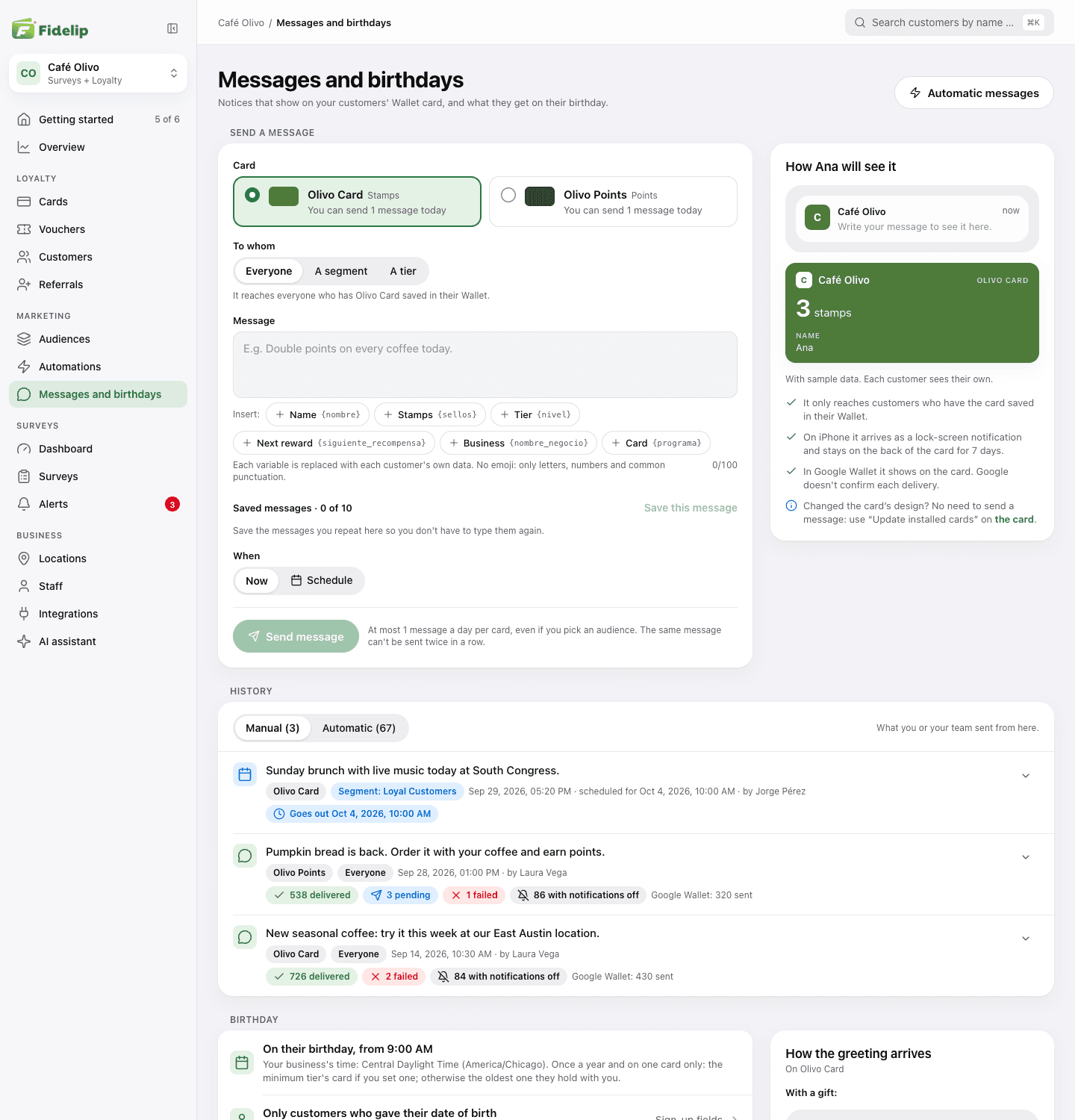
The editor has the same 100-character limit, and the preview under it and the one at the side update as you type. The Name and Business buttons insert {nombre} and {nombre_negocio}. Gift inserts {bonus} (the amount you give, or the voucher’s name) and Unit inserts {unidad} (stamps, points or visits, depending on the card type); they only appear when there is a gift of that kind. The other variables above also work if you type them by hand. If you leave the field empty, the default text is used, which adapts by itself to whether there is a gift. If your text mentions the gift but a customer does not get it (gift off, or below the minimum tier), that customer gets the standard greeting.
History and deliveries
Under the composer is the History: every send with its text, the card it went to, who it reached (Everyone, a segment or a tier), the date, who sent it and the delivery summary. A scheduled message shows when it goes out until it does.
It has two tabs: Manual (what someone on your team sent, scheduled ones included) and Automatic (birthday greetings and automations). Each automation takes one row per card and per day, with its name, even if that day it reached many customers; that way it never buries your own sends. 20 rows load at a time and Show more brings the earlier ones. The Automatic messages button at the top of the page takes you to Dashboard → Automations.
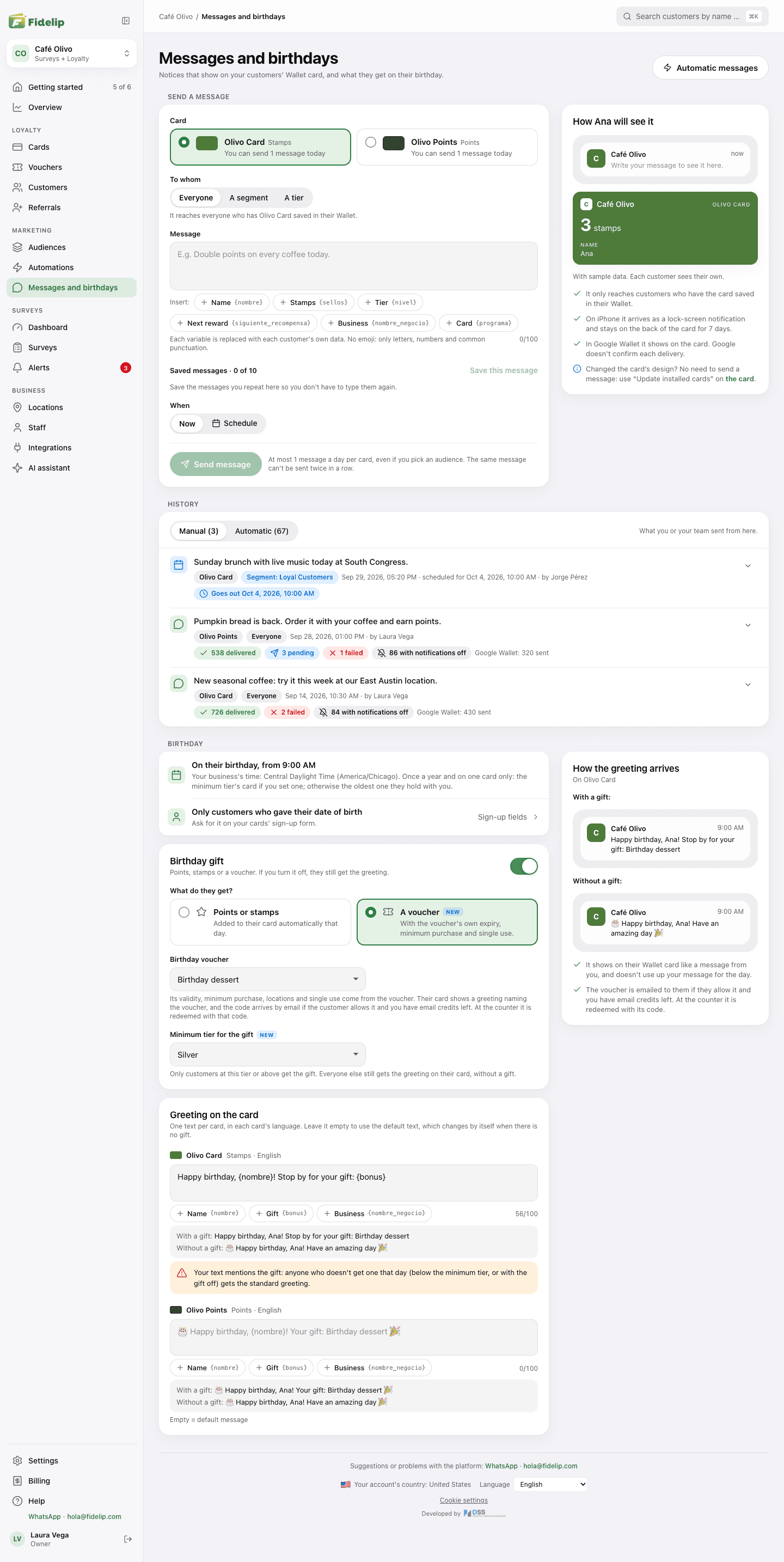
Right after you send a message, its row says Sending… while we prepare the notice for each card; within a few seconds it switches by itself to the number of cards. If it says No cards installed when it finishes, it did not reach any phone: nobody in that send had the card saved. To see how it went for each customer on iPhone, open the arrow on the right of the row.
| Status | What it means |
|---|---|
| Delivered | Apple accepted the notice for that iPhone. Fidelip cannot know whether the customer saw it. |
| Notifications off | The customer has the card saved, but that iPhone does not have the card’s updates turned on, so the notice did not reach it. |
| Pending | Still on its way: there is no answer from Apple yet. The page refreshes by itself in the meantime. |
| Failed | The attempt could not be completed (device removed, permission revoked, temporary error). |