
Set up your loyalty program
Fidelip supports three types of card. You can have several active at the same time (each additional card costs extra, and inactive cards do not count toward your plan's limit), but most businesses start with just one.
Your first card was already created when you designed your account at id.fidelip.com/create: open it in Dashboard → Cards (select the card, or choose Open and edit in its menu) and adjust what this chapter describes. For a second card, the owner selects Add an extra card, which leads to Dashboard → Billing (+$19 USD/month), and then New card. These are United States prices, before sales tax; in other countries Fidelip bills in the local currency (see fidelip.com).
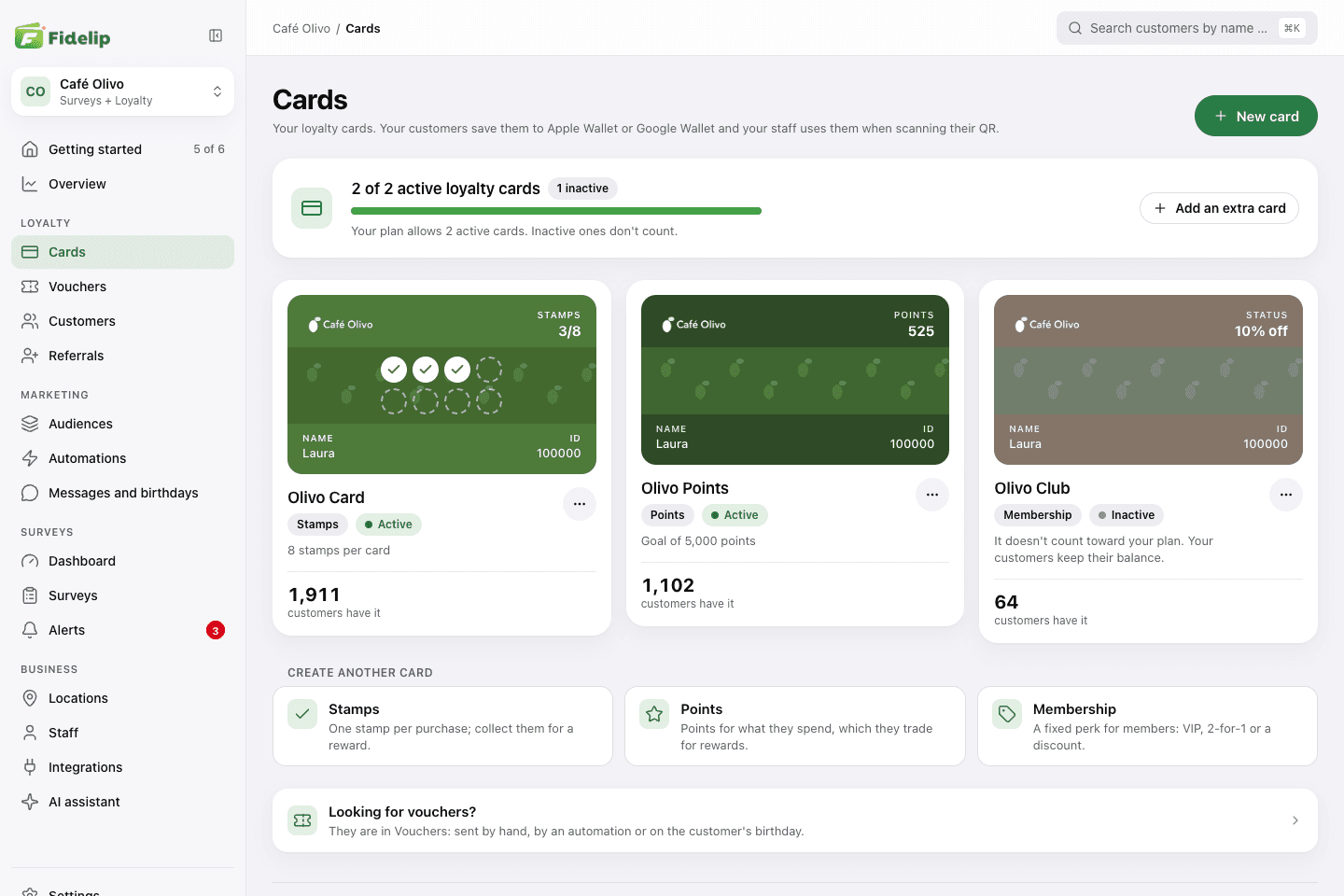
Choose the card type
New card opens a form on the right: type the Card name, pick the type under How do your customers earn? and select Create card. You land on the Design tab to add your logo and colors (chapter 03). The type can't be changed after the card is created.
| Type | How it works | Best for |
|---|---|---|
| Stamps | Customers collect one stamp for every qualifying visit or purchase until the card is full. The stamp that completes the card hands over the prize automatically, and the card starts over. | Coffee shops, car washes, salons, barbershops. |
| Points | Customers earn points based on the amount they spend (e.g. 1 point per $10). They redeem points for the rewards you define. | Restaurants, retail, stores with tickets of varying size. |
| Membership | Customers get a fixed perk (VIP 20% off, 2-for-1, a free dessert) that the cashier redeems in the app by scanning their card, and the perk text shows on the card. You decide how often it can be redeemed: once per customer, x times a week, unlimited, and so on. | Restaurants with happy hour, gyms with extra classes, salons with VIP services. |
The rest of the card lives in the Program tab (Dashboard → Cards → Program): Stamps per card or Points goal (just the number shown on the Wallet card; it does not limit how many points a customer can collect) and the Card active switch. An inactive card stops appearing in the counter app and on your sign-up page, and your customers keep their balance. Membership cards also have the Benefit label and Redemptions per customer there. On the Enterprise plan, membership cards add an Employees tab that lists the people who hold the card.
Earning rule
Stamp and points cards have an earning rule that defines how customers earn. Fidelip creates one along with the card, and you can adjust it at any time in Dashboard → Cards → Rules: select the pencil on the rule, change what you need and select Save rule. A membership card has no earning rule. Under How it is earned you choose:
- By spend: one stamp or point for every amount spent (e.g. 1 point per $10). Under How much it gives choose Fixed amount or By spend ranges, which gives more to customers who spend more (e.g. 1 point on checks up to $499 and 2 from $500). Useful for points programs.
- By product: one stamp for every eligible product (e.g. one stamp for every coffee sold).
- By visit: one stamp or point for every visit or purchase, regardless of the amount.
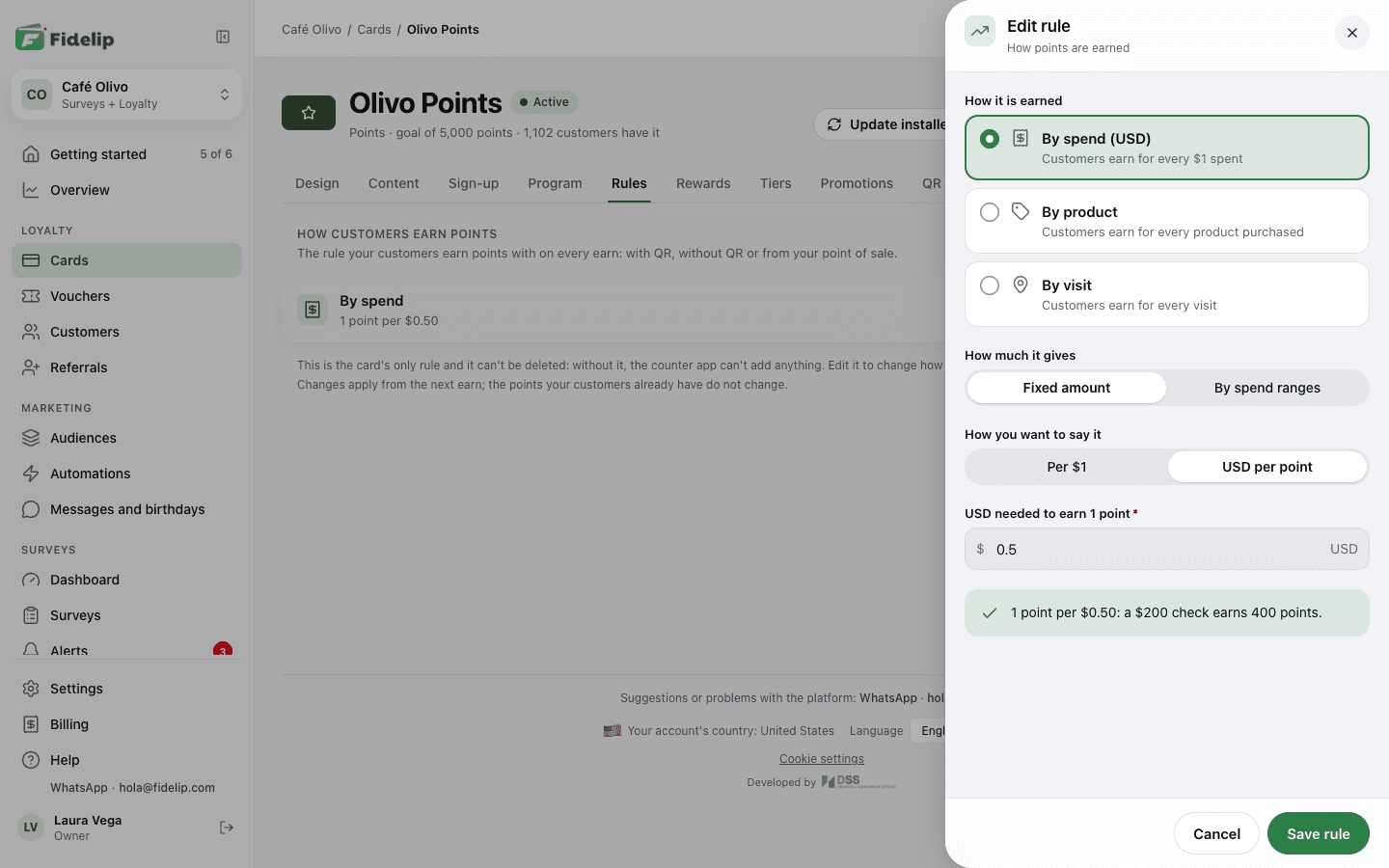
A stamp card uses a single rule. A points card can have one per type (Add rule), but it is best to keep just one: the counter app adds points by amount spent, and Fidelip warns you if there are several. A card's last rule cannot be deleted, because without it the counter app could not add anything; on a points card the By spend rule cannot be deleted either when it is the only one of its type, even if there are others. To change how customers earn, edit the rule: changes apply from the next time a customer earns, and what your customers already have does not change.
Promotions (temporary multipliers)
Promotions are extra rules that multiply what customers earn on certain days and hours. For example: double stamps on Tuesdays from 3 to 6 pm, or triple points all day Saturday and Sunday. Create them in Dashboard → Cards → Promotions with New promotion: give it a Name, the Multiplier (×2 is double; on a stamp card, whole numbers only, because a stamp can't be split), the Days (no days selected means every day) and the hours: All day, or From and To. They use your business's time and apply automatically on every earn, with nothing for the cashier to do. A switch in the list turns each one on or off. Membership cards don't have promotions.
If the card has tiers, a promotion combines with the customer's tier multiplier: a ×2 promotion and a ×1.5 tier give ×3 (chapter 07). Turn off Combines with the tier multiplier so that, while the promotion runs, customers earn with the promotion instead of their tier bonus, and Combines with other promotions so that, if two overlap, only the one with the highest multiplier counts.
Rewards
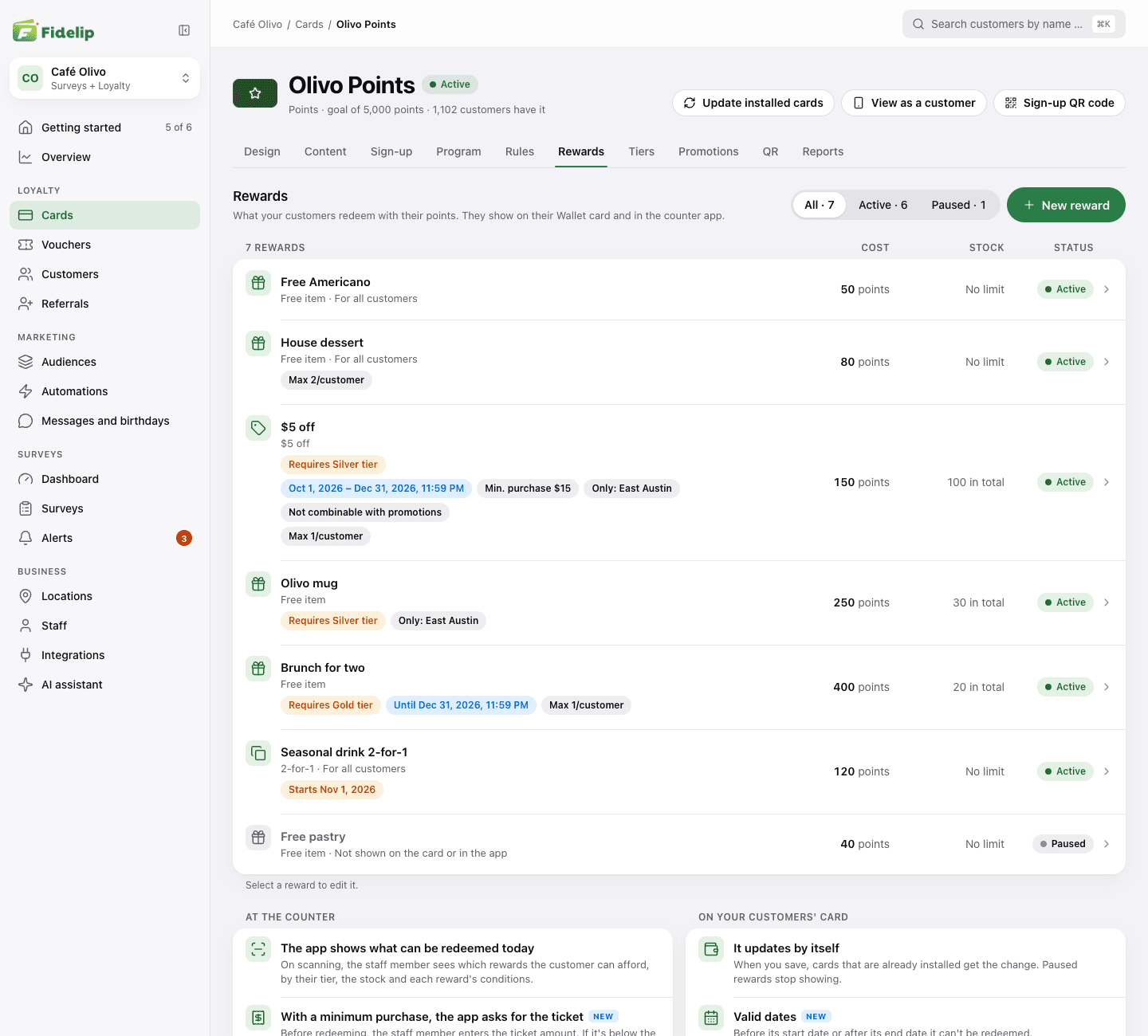
Stamp and points cards have a list of redeemable rewards in Dashboard → Cards → Rewards. Each card starts with a first reward: select it to edit it, or create another with New reward. For each one you define:
| Field | What it means |
|---|---|
| Reward type | A free item, a percentage discount, a fixed-amount discount or a 2-for-1. For discounts, you enter how much. |
| Name | What the customer sees on their Wallet card and in the counter app: 'Free coffee', 'Complimentary dessert', 'Free haircut'. You can add a description (it goes on the back of the card) and a photo (customers see it in their portal). |
| Cost | How many points it takes to redeem it. On a stamp card the field is locked: the reward for a completed card costs one full card. |
| Stock | Optional: how many redemptions can be made in total (the ones already made count). Empty = no limit. When they run out, the counter app blocks the redemption. |
| Limit per customer | How many times the same person can redeem it, in total. Empty = no limit. |
| Minimum tier | Optional, and it only appears if the card has tiers: only customers at that tier or higher can redeem it. All customers leaves it open (chapter 07). |
| Redemption conditions | Optional: Valid dates (it can only be redeemed between two dates), Minimum purchase (the app asks for the ticket amount before redeeming and needs a recent version), Only at these locations and Not combinable with promotions (it can't be redeemed while one of the card's promotions is running). |
| Available to redeem | When off, the reward is paused: it stops appearing on the card and in the app, and you can turn it back on later. A reward that has already been redeemed can't be deleted, only paused. |
On a points card, when the cashier scans a customer, the counter app shows which rewards the customer can afford, based on their tier, the stock and each reward's conditions. On a stamp card the prize is handed over automatically: the stamp that completes the card makes the app record the prize as given, and the card starts over. Because there is no redemption at the register where limits could be checked, that stamp does not check the stock or the limit per customer, and the reward has no redemption conditions; if you want a prize that expires or requires a minimum purchase, use a voucher in Dashboard → Vouchers (chapter 11).
If your business is new to loyalty programs, start with one clear, reachable reward (an 8-stamp card, for example, or the equivalent of 2 or 3 visits in points). Once you see traction, add more rewards and tiers.