
Audiences (RFM segments)
In Dashboard → Marketing → Audiences Fidelip automatically groups your customers by when they last came in, how often they come and how much they have spent. The result is a set of named groups (your best customers, the ones who are cooling off, the ones who just arrived) that you can then use to send a message to their card, trigger an automation, or simply filter your customer list. You do not have to set anything up for it to start working.
The screen has two tabs: Automatic segments, with the groups and what you can do with each one, and How they're calculated, with the three scores, what counts as “a lot” and the rules behind each segment. The Segments tab of Customers shows the same groups: tap one and the Customers list opens filtered by that segment, with search, pages and export.
What RFM is
RFM is three ways of measuring a customer. Fidelip calculates each one and gives it a score from 1 to 5, where 5 is always the best:
- Recency: days since their last visit. A 5 = they came in very recently.
- Frequency: how many times they have earned since they signed up. A 5 = they come in very often.
- Monetary: how much they have spent in total, adding up the amounts your team enters when adding points or stamps. A 5 = they spend a lot.
The three scores together make up the customer's profile (for example 555 = came in recently, comes often and spends a lot). A visit is something the customer did at the counter: earning (by scanning their QR or with an add without QR) or redeeming a reward. Both count for recency; for frequency and spend only earns count, because a redemption does not add a visit. Manual adjustments, survey, birthday and referral bonuses, and earns that were undone do not count. It is the same count you see in your customer list: Last visit includes redemptions; the number of visits does not. Recency and frequency also produce a churn risk you can sort the Customers list by: pick Churn risk in Sort by.
How scores are handed out
Each customer is compared with the other customers of your business: roughly the top 20% get a 5, the next 20% a 4, and so on. Customers who tie get the same score, the middle one of their group, never the highest. Also:
- Someone who has come in only once always scores 1 for frequency, even if most of your customers have also come in once.
- Frequency also has a minimum number of visits: a high frequency score needs at least 3 visits; the highest needs 5. With two visits the most you can reach is 3. That way, in a business where almost everyone came once, someone who came twice does not end up in Champions. It applies even if you set the cutoffs by hand.
- If your team does not enter amounts (normal for a stamp card), everyone scores 3 for monetary and the screen tells you spend does not count. The built-in segments do not depend on spend, so they work the same.
- Someone who signed up but has never come in is not scored: they sit in their own group, No visits yet. You see it in Audiences and in Customers, and you can pick it as the audience of a card message or an automation that invites them to their first visit.
You need at least 10 customers with a visit before scores appear. With fewer people the cutoffs would mean nothing. Until then, the card at the top (Current distribution) tells you so and does not draw the segment bar.
When scores update
Every night the scores are recalculated for every business that had activity (if nobody bought anything, that business is skipped and nothing changes). A customer's score also refreshes on its own a few moments after they earn or redeem in the app, without making the scan wait. If you want to see it right away, the Recalculate now button at the top of the screen starts the full calculation in the background. You will almost never need it: when you save a segment or a set of cutoffs, Fidelip regroups your customers by itself within seconds.
The built-in segments
Every account starts with 11 segments ready to use, based on the classic RFM grid of recency by frequency. Each one is a range of scores, and together they cover every combination: each scored customer lands in exactly one.
| Segment | R / F / M | What it means and what to do |
|---|---|---|
| Champions | 5 / 4-5 / any | Came in recently and come in very often: your best customers. Reward them and ask for reviews or referrals. |
| Can't Lose Them | 1-2 / 5 / any | Used to come in very often and stopped: the biggest churn risk. This is the group that justifies a strong offer. |
| At Risk | 1-2 / 3-4 / any | Used to come in often and have not in a while. Act soon, before they cool off completely. |
| Loyal Customers | 3-4 / 4-5 / any | They come in often. Keep them happy; they are natural candidates to move up a tier. |
| Potential Loyalists | 4-5 / 2-3 / any | Came in recently and have already come back. They can become loyal with a nudge. |
| New Customers | 5 / 1 / any | Their first visit was very recent. This is where the first impression is made: a welcome message and a reason to come back. |
| Promising | 4 / 1 / any | Came in once, not long ago, and have not come back yet. Give them a reason for a second visit. |
| Need Attention | 3 / 3 / any | Come in now and then and have not in a while. Win them back before they drift away. |
| About to Sleep | 3 / 1-2 / any | Rarely come in and have not in a while. A friendly reminder is usually enough. |
| Hibernating | 2 / 1-2 / any | Rarely come in and have not in a long time. A low-cost campaign. |
| Lost | 1 / 1-2 / any | Rarely come in and are among the longest gone. Last chance to win them back. |
Spend (M) does not decide any built-in segment, so they work the same in a business that does not enter amounts. If you want to use it, create a segment of your own with an M range. When two segments overlap (this only happens with the ones you create or edit), each one has a priority and the lowest number wins.
Accounts created before September 2026 had built-in segments that overlapped and left some combinations without a segment; Lost could not hold anyone. If your account still had all 11 unchanged, they moved on their own to the ranges above the first time you opened Audiences (or that night), and the screen updated by itself when the recalculation finished. If you had edited, renamed or deleted any of them, you keep yours; changing only the color or turning one off does not count as an edit.
All of them can be edited. Tap the pencil on a segment's row and the Edit segment panel opens, with its Name, Description, Color and Priority, the 1-to-5 range for each axis under Who gets in, and the Active segment switch: turned off, the segment stops being used without being deleted. Save changes regroups your customers within seconds. To create your own, tap New segment in the How they're calculated tab: besides the above it asks for a Code of your own (2 to 40 characters: letters without accents, numbers and underscores) that cannot be changed afterwards, and you finish with Create segment. If you deleted one of the built-in segments, Restore default segments, in that same tab, creates the missing ones again without touching the ones you already edited. Only the owner or an admin can change segments.
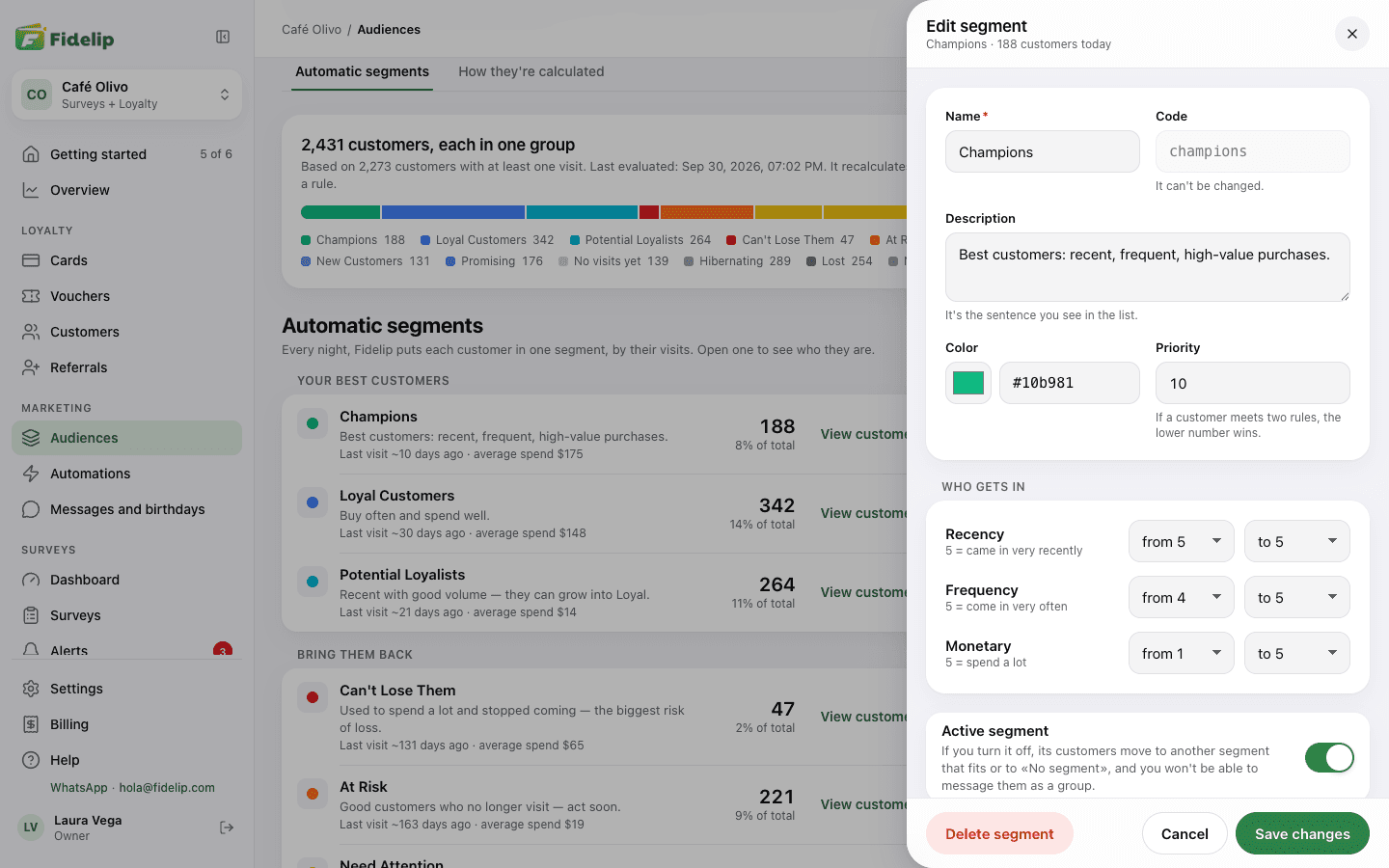
To delete one, open its panel and tap Delete segment: before you confirm, Fidelip tells you how many customers it moves. The last segment you have left cannot be deleted (with none, Fidelip restores the built-in ones): turn it off with Active segment instead.
If you delete a segment, you do not have to wait for the nightly evaluation: within seconds Fidelip relabels all your customers against the segments that are still active, without touching their R/F/M scores. Each customer lands in the next active segment that fits them; the customers whose numbers no longer fit any active rule end up in No segment, along with those who signed up after the last evaluation. That group appears at the end of the list, under Not in a group yet, with its View customers button. Their points, stamps and cards do not change.
Cutoffs: what counts as “a lot”
$100 is a lot to spend at a coffee shop and very little at a jewelry store. That is why the cutoffs between scores are not fixed: in Automatic mode they come from comparing your own customers, so that roughly the top 20% of your base gets a 5 on that axis, the next 20% a 4, and so on (with the ties and the single-visit rule explained above).
In the How they're calculated tab, below the three scores, each axis has its own Automatic / Manual switch. With Manual you type the four cutoffs yourself, one for each score from 2 to 5: the field for 5 is the cutoff to earn a 5. Each axis is set separately:
- Recency: in days since the last visit. Fewer days is better, so the cutoffs go down as the score goes up: the one for 5 is the smallest number.
- Frequency: in number of visits. The cutoffs go up with the score. The minimum number of visits still applies: even if you set the cutoff for 5 at 2, a 5 needs at least 5 visits and a 4 at least 3.
- Monetary: in total spend, in your business's currency. The cutoffs also go up with the score.
With Automatic the fields show the cutoffs Fidelip calculated from your customers and cannot be edited. With Manual, below each field you see the automatic value (for example, 45 days), useful as a starting point; a “—” means nobody reaches that score today. If the cutoffs are not in the right order, the screen will not let you save and tells you which axis to fix. Save and recalculate turns on once you change something and, when you press it, every customer is scored again with the new definition.
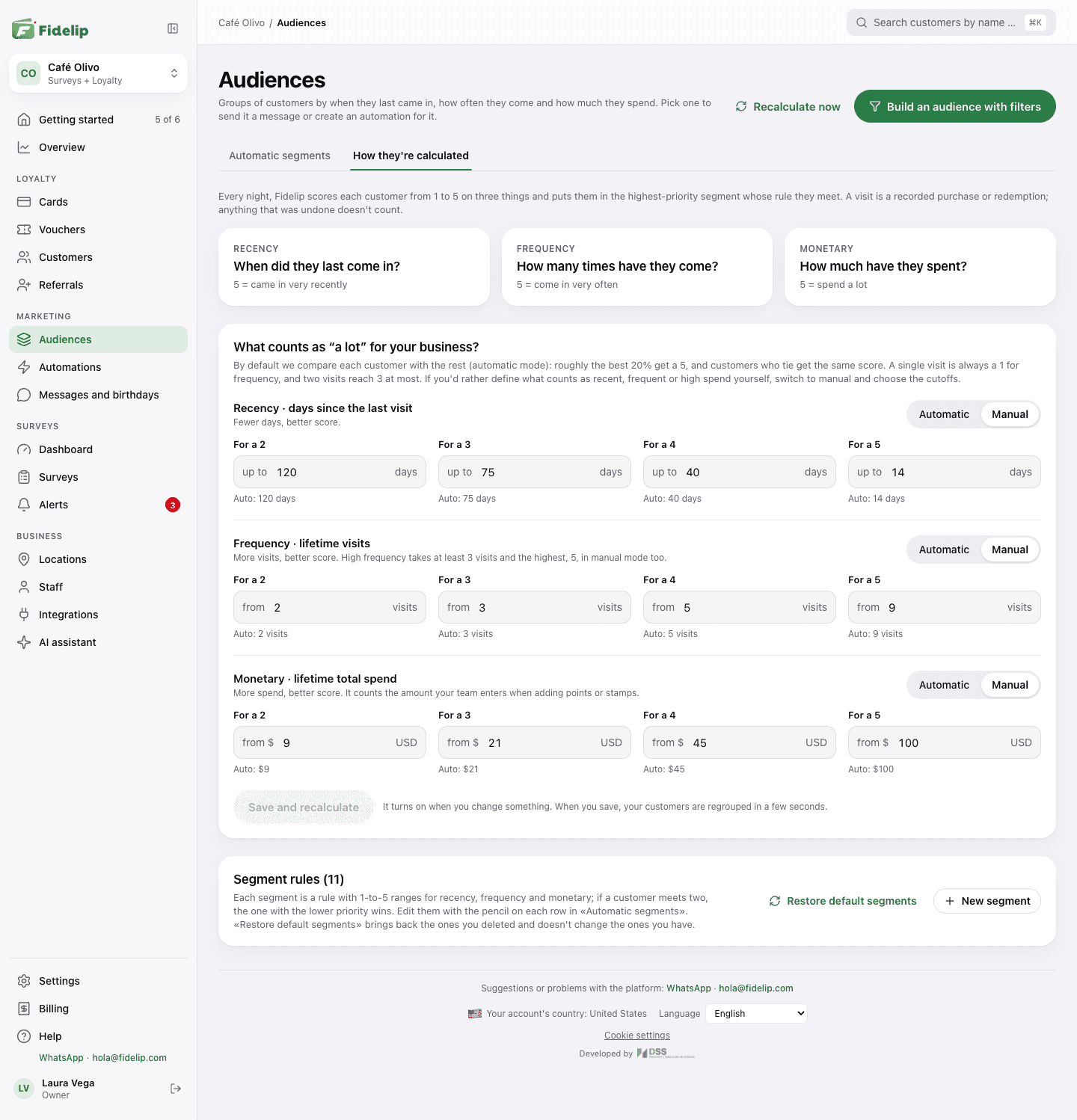
Start with automatic. Switch to manual only when you have a clear business definition. For example, if you know a customer in your line of business is “lost” after 60 days, set that cutoff by hand instead of letting your base's average decide it.
Using a segment
In the Automatic segments tab, the card at the top tells you how many customers you have, spreads them across a colored bar with the number in each segment, and shows when it was last calculated. Below it, the segments are listed in groups by what you would do with each one: Your best customers, Bring them back, Newcomers and Almost lost; at the end come Your segments (the ones you created) and Not in a group yet. Each row shows how many customers are in it and what share of the total they are, the average days since their last visit and, if your team enters amounts, the average spend. On the right of each row you have five shortcuts:
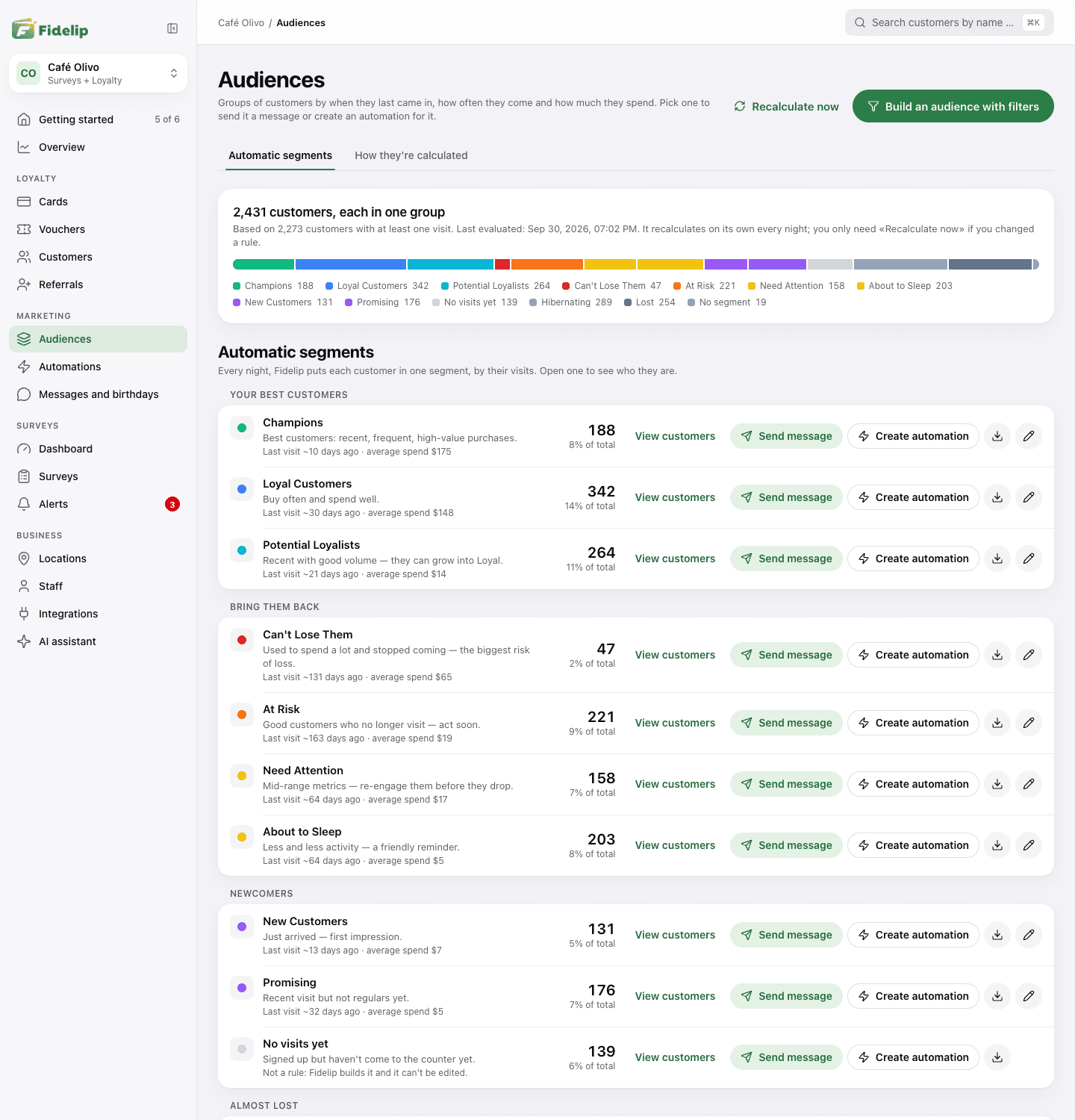
- View customers: your customer list already filtered by that segment, to review them.
- Send message: opens Dashboard → Marketing → Messages and birthdays with that audience preselected (chapter 09).
- Create automation: a new automation for that segment, which runs by itself every night (chapter 10).
- The download icon: downloads that segment's customers to Excel (how it works is explained below).
- The pencil: opens the segment's rule so you can edit it.
If a segment has nobody in it today, its row says Nobody fits this segment yet and its buttons are turned off. A segment you turned off says Turned off and has no shortcuts either until you turn it back on with its pencil (Active segment). No visits yet (people who signed up but have not come to the counter) is not a rule: Fidelip builds it and it has no pencil, but you can view it, download it, send it a message or create an automation for it. No segment only has View customers and the download.
If what you want is not a segment but a mix of several filters, Build an audience with filters, at the top of the screen, opens Customers, where you can combine all its filters.
Downloading a segment to Excel
The download icon on each row exports that segment's customers to Excel, and only the owner or an admin can use it. The file holds personal data (name, email, phone, birthday, balances, tier, visits and spend, among others), so Fidelip asks for two things before building it. Download customers as Excel opens, with what the file includes and a notice: you are responsible for the file, we strongly recommend not keeping it on your computer or forwarding it, and Fidelip cannot recover or delete copies that leave the platform. Tick the box where you accept that responsibility and tap Email me a code. A 6-digit code arrives at your account's email: type it in and tap Download Excel. The code expires in 10 minutes, works for one download and allows 5 tries; if you need another, use Resend code. It is the same lock the Customers list download has. A segment with no customers cannot be downloaded.
Because the segment recalculates by itself, the audience stays current: an automation aimed at At Risk reaches whoever fell into that group each night, without you touching anything again.