
Design your digital card
Fidelip cards live inside Apple Wallet on iPhone and Google Wallet on Android, the wallet apps that already come with the phone. Your customer adds the card once and carries it everywhere, next to their boarding passes, bank cards and event tickets.
Your customers don’t download any Fidelip app. The people who use an app are your staff at the counter (the staff app) and you, in the dashboard (the web app). For the customer, everything happens inside their phone’s wallet.
What you can customize
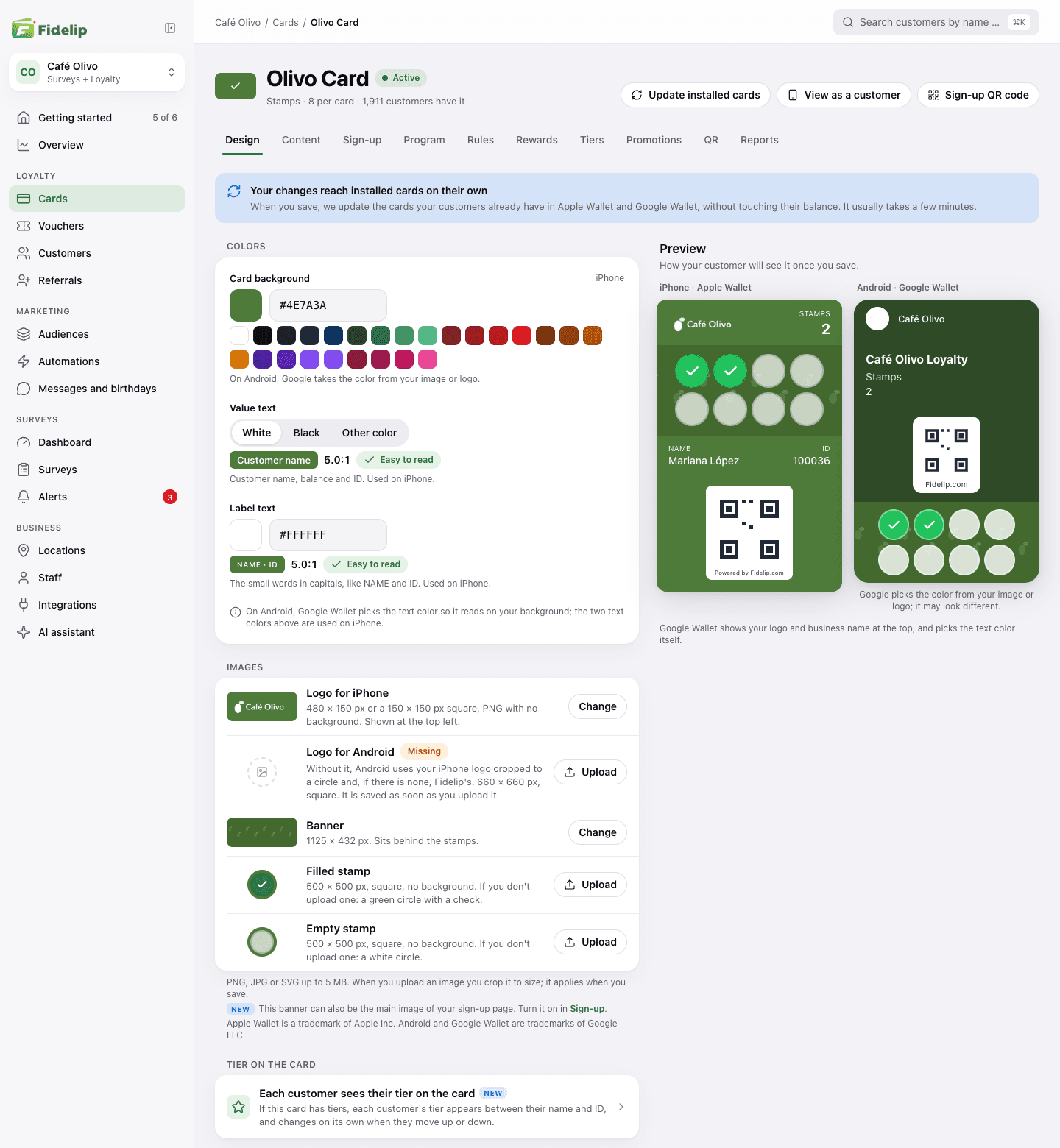
You design the card in Dashboard → Cards → Design: open the card and go to that tab. On the left you set the Colors and the Images; on the right, the Preview shows the card on iPhone and on Android the way your customer will see it once you save (if your screen can’t fit them side by side, you switch between the two with those buttons). Until a card has its own colors, logo and banner, it uses your business’s (Dashboard → Settings → Brand design); what you change here applies only to this card.
Under Colors you set three things:
- Card background: the color of the card. Type a HEX code (like #2F4A26), pick it with the color picker or tap one of the suggested colors.
- Value text: the color of the customer’s name, balance and ID. Choose White, Black or Other color.
- Label text: the color of the small capitalized words, like NAME and ID.
Each text is shown on your background with its contrast: Easy to read or Hard to read. If it is hard to read, Fidelip suggests white or black, but you can save it as is. The two text colors are used on iPhone.
Android doesn’t look exactly like iPhone. Google Wallet picks the text color on its own and uses a single color for all your business’s cards: next to the background you’ll see whether the color applies to iPhone only or to Android too and, when Android’s color isn’t the card’s, the preview says where it comes from (your business’s color in Dashboard → Settings → Brand design, or the one Google takes from your image or logo).
Under Images you upload:
- Logo for iPhone: 480 × 150 px, or a 150 × 150 px square, as a PNG with no background. It sits at the top left of the card.
- Logo for Android: a 660 × 660 px square; Google shows it inside a circle. It is saved as soon as you upload it, without waiting for Save changes. Without it, Android uses your iPhone logo cropped to a circle and, if there is none, Fidelip’s (the row says Missing).
- Banner: 1125 × 432 px. It is the strip across the card; on a Stamps card it sits behind the stamps.
- Filled stamp and Empty stamp: only for Stamps cards. Two 500 × 500 px icons, square and with no background: one for a stamp the customer has earned and one for the ones still missing. If you don’t upload one, the card uses a green circle with a check and a white circle.
Each row has an Upload button (or Change, if there is already an image). It accepts PNG, JPG or SVG up to 5 MB and opens a crop at that slot’s proportions. The image is applied when you save; until then the row says Not saved. If you change the same type of image many times in one day, Fidelip tells you how many changes you have left today: it doesn’t block you, but installed cards may take longer to update. The same banner can be the cover of your sign-up page: turn it on with Use the card’s banner as the cover in the Sign-up tab.
Other things your customer sees on the card:
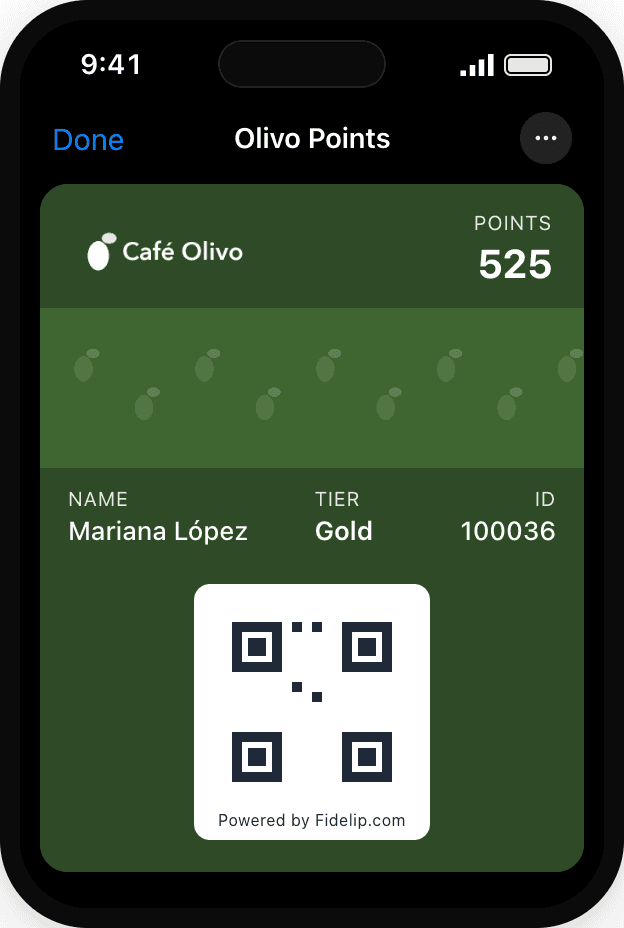
- Tier on the card: if the card has tiers, each customer’s tier appears between their name and their ID and changes on its own when they move up or down. You create tiers in the Tiers tab (see VIP tiers).
- The texts on the back of the card (how to earn, available rewards and terms) aren’t in Design but in the Content tab, under Card texts. They write themselves from your rules and rewards (How to earn stamps or How to earn points, Available rewards and Terms of use); with Customize text you write your own and with Back to automatic you return to the automatic text.
- The card’s language (the one used for labels like NAME or STAMPS) is set in Dashboard → Cards → Program → Card language.
Always use a PNG with a transparent background for your logo. If you upload a JPG or a PNG with a white background, the logo will show up as a white box on the dark colors of the wallet.
Save and update installed cards
While you edit, your customers’ phones don’t change. When something is pending, the bar You have unsaved changes appears at the bottom, with Discard and Save changes; if you leave the tab with something unsaved, the dashboard asks first.
When you save, Fidelip updates on its own the cards your customers already have in Apple Wallet and Google Wallet, without touching their balance. It usually takes a few minutes. If a phone still shows the old card, use Update installed cards (at the top, next to the card’s name): it sends the card again to people who have it in Google Wallet and to iPhones with automatic updates on, and it changes no balance and sends no message. If you press it twice in a row, it tells you how many minutes to wait. Only the owner and admins can change the design and resend the cards.
How your customer gets the card
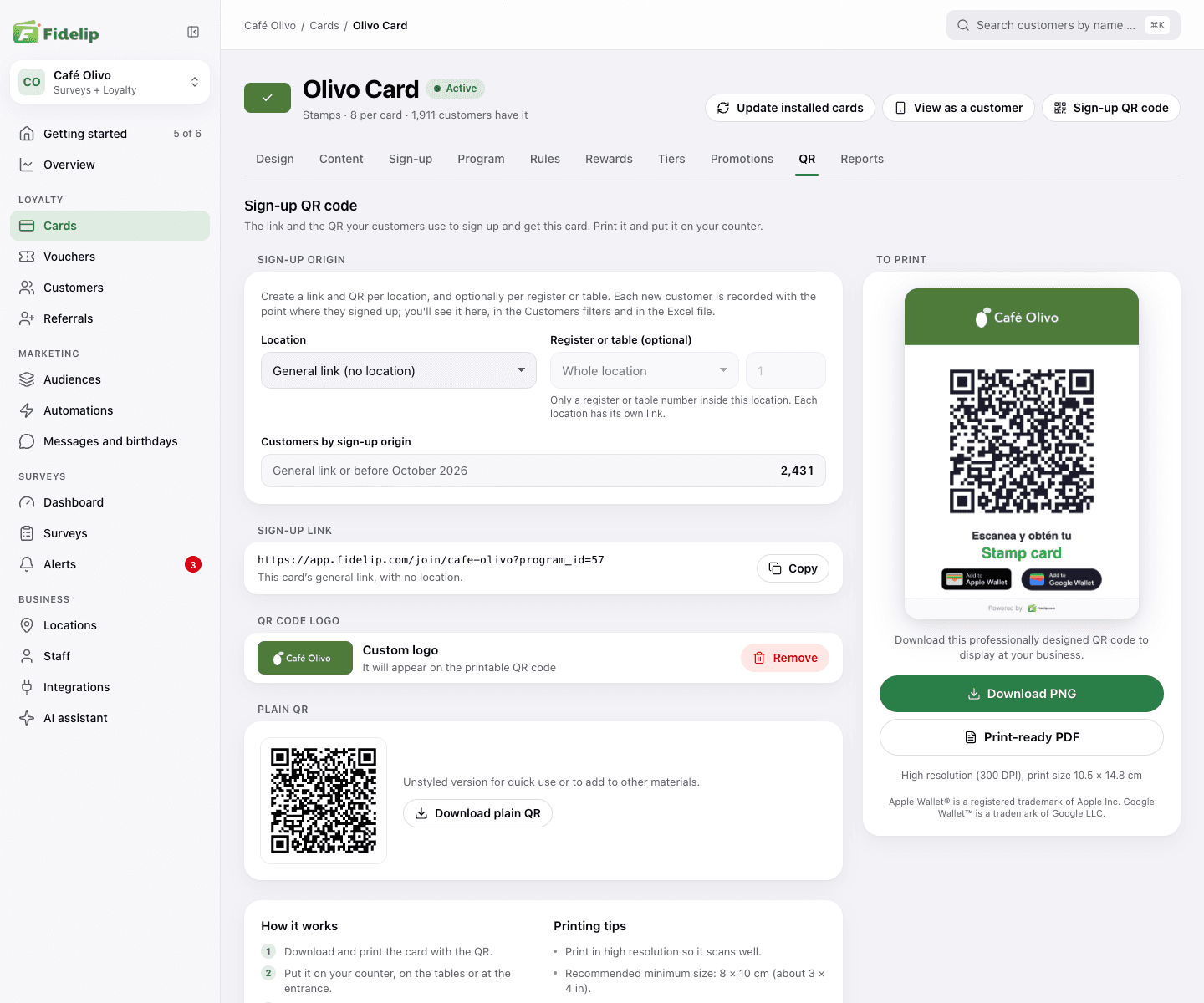
While the card is active, the QR tab (Dashboard → Cards → QR; the Sign-up QR code button at the top takes you there) has everything you need to hand it out:
- The card’s Sign-up link, with a Copy button, to share by text message, Instagram or email. View as a customer, at the top, opens that page the way your customer sees it.
- A printable QR code for your counter, tables or entrance, with your logo and the official Apple Wallet and Google Wallet buttons: Download PNG or Print-ready PDF, both in high resolution. If you prefer the QR alone, with no design, use Download plain QR.
- Sign-up origin, if you have locations: one link and one QR per location and, if you want, per register or table. Each new customer is recorded with the point where they signed up.
If the card is inactive, its link and QR say the sign-up link isn’t available until you turn on the Card active switch in the Program tab.
Your customer opens the link or scans the QR, enters their name and email and, when they finish, taps the official button for their phone to save the card (the same ones you see here):


When a customer earns a stamp, their card updates within seconds through a silent push notification. Apple Wallet and Google Wallet do the work: you don’t need to do anything extra (on iPhone, as long as the customer has automatic updates on for the card). If the phone has no signal at the exact moment of the redemption, the card syncs when it reconnects.