
Surveys in depth
A Fidelip survey is a set of questions your customer answers on their phone, through a link that is unique to each response. This chapter covers all of it: the 15 question types, conditional logic, the bonus and its abuse protection, kiosk mode, automatic emails, alert rules and how to read the results. You can have several surveys, each with its own link, QR code, design and settings: for example, a satisfaction survey for table service and a shorter one for delivery orders. Only the active ones count against your plan (see Plans and limits).
Surveys work without a loyalty program: they are included from the Surveys plan up. If you also have a card, you can reward customers for answering.
The editor: the customer journey and its settings
Create a survey in Dashboard → Surveys → Surveys with New survey (or Create my first survey if you don't have one yet): pick Blank or a template for your type of business, and its editor opens. A blank survey starts as a draft (inactive); a template starts active if your plan has room, and as a draft if not. You can change everything later.
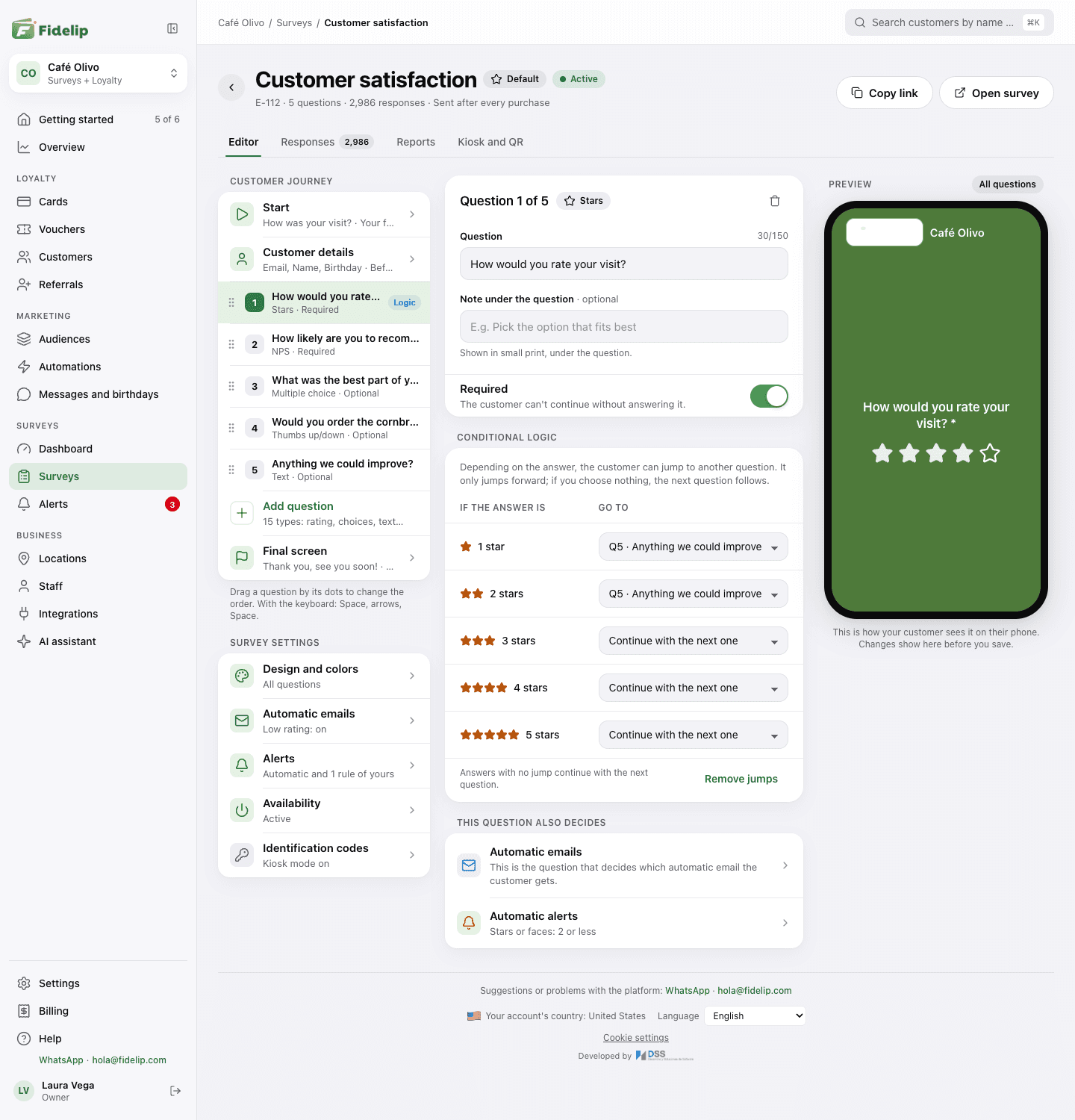
The editor has four tabs across the top: Editor, Responses, Reports and Kiosk and QR. In Editor you see three columns: on the left, the Customer journey and the Survey settings; in the middle, the part you are editing; on the right, a Preview of how the customer sees it on their phone (on a phone, the parts take turns). Your changes are saved together with the Save changes bar (or Discard); only the switches in Kiosk and QR and the locations save on their own.
| Part | What it sets |
|---|---|
| Start | The title and welcome the survey opens with. The survey's number appears above the title, so your team knows which one the customer answered. |
| Customer details | Which details you ask for (email, name, phone…), in what order, and whether they come before or after the questions. |
| Add question | Each question appears in the journey, in order: drag it by its dots to move it, and open it to edit its text, a note under it, whether it is required, its options and its logic. This button offers the 15 types. |
| Final screen | What the customer sees when they finish: the thank-you, the button to join the loyalty program and the bonus for answering. |
| Design and colors | How it is answered (all questions or one at a time), colors and text size, so the survey looks like your brand. |
| Automatic emails | What the customer receives depending on the rating they left. |
| Alerts | Rules that warn your team when a bad response comes in. |
| Availability | Whether the survey is active, which locations offer it, and its name and link. |
| Identification codes | Shows whether kiosk mode is on and takes you to Kiosk and QR, where it is set up. |
The 15 question types
Add question groups them into four categories; a new question is added at the end, and then you drag it into place:
| Category | Types |
|---|---|
| Rating | Stars (1–5), faces, NPS (0–10, “how likely are you to recommend us?”) and thumbs up/down. |
| Choice | Single choice (one option), multiple choice (several answers) and image choice. |
| Text | Free text, number and date. |
| Advanced | Scale, ranking (put options in order), matrix (several rows with the same columns), message (a text to read, with no answer) and photo upload. |
Conditional logic
In a question's Conditional logic section you can set up jumps: for each answer (If the answer is) you choose where it goes (Go to): Continue with the next one, a later question or End survey. It only jumps forward, and Remove jumps clears them. The classic pattern: if the rating is low, ask “what happened?”; if it is high, jump straight to the end. The types that support logic are stars, faces, NPS, thumbs, single choice and multiple choice.
Details, final screen and design
- Customer details: what to ask for besides their answers: Email (always asked, to identify the customer), Full name, Phone number (with a country code picker), Gender, Age and Date of birth (day and month, or the full date). Turn on only the ones you need, mark which are Required and drag them to change the order; choose whether they are asked Before the questions or At the end. Ask for as little as you can: every extra field lowers the completion rate.
- Permission for promotions: decide whether the survey has the box where the customer agrees to receive promotions (Ask permission to send them promotions), whether it starts ticked (Box ticked from the start) and whether, once they agree, they get their card right away (Give them their card when they accept; only with an active loyalty program).
- Final screen: the Title (optional) and the thank-you Message, and the switch Button to join your loyalty program.
- Bonus for answering (also on the final screen): with Give points or stamps at the end and an Amount, the customer gets points or stamps on their card when they finish the survey. It has abuse protection built in: at most 1 bonus every 20 hours and 4 per week per customer, so nobody fills in surveys back to back to farm points. The bonus counts toward tier progress, just like a purchase.
- Design and colors: How it is answered, with All questions (a single page; the customer scrolls down to answer) or One at a time (one screen per question, easier on a phone); the colors (Background color, Question color, Accent and Button) and, under Question text, the Size and the Alignment. The editor checks each color against what is behind it: if a question or the button's text couldn't be read, the survey shows it in white or black, and the accent is not corrected on its own, so the editor warns you next to each color.
How the survey reaches the customer
| Channel | How it works |
|---|---|
| Printed QR | On the Kiosk and QR tab, QR to print makes a card ready for tables, receipts or the counter (it carries your logo and your main color) as a PNG or PDF, and Plain QR gives you the code with no design for menus or social media. Both open the survey's public page. |
| Direct link | app.fidelip.com/s/{your-business}/{survey}. Copy it with Copy link (at the top of the editor) or with the copy icon on its row in Surveys, and share it on social media, by text or on your website. Open survey opens it as the customer sees it. The {survey} part can be changed in Availability, but then the QR codes you already printed stop opening it. |
| Kiosk | A tablet left at your location with the survey always open: from the app, or with the Kiosk link in the tablet's browser. See Kiosk mode below. |
| Staff app | The Surveys tab of the counter app: the cashier opens the survey and hands the phone or tablet to the customer after they pay. |
The Surveys list: default, duplicate, deactivate and delete
Dashboard → Surveys → Surveys lists your surveys: the active ones first, then the inactive ones, drafts included. Each row has its link to copy, its QR and the three-dot button with its actions: Edit, View responses, Duplicate, Make default, Deactivate and Delete. At the top, What your plan includes shows how many active surveys you have and how many responses you have received this month: the plan includes 1 active survey and 10,000 responses a month, and responses are never blocked (the Enterprise plan has no cap). When you reach the cap on active surveys, the owner sees Add an extra survey, which goes to Dashboard → Billing.
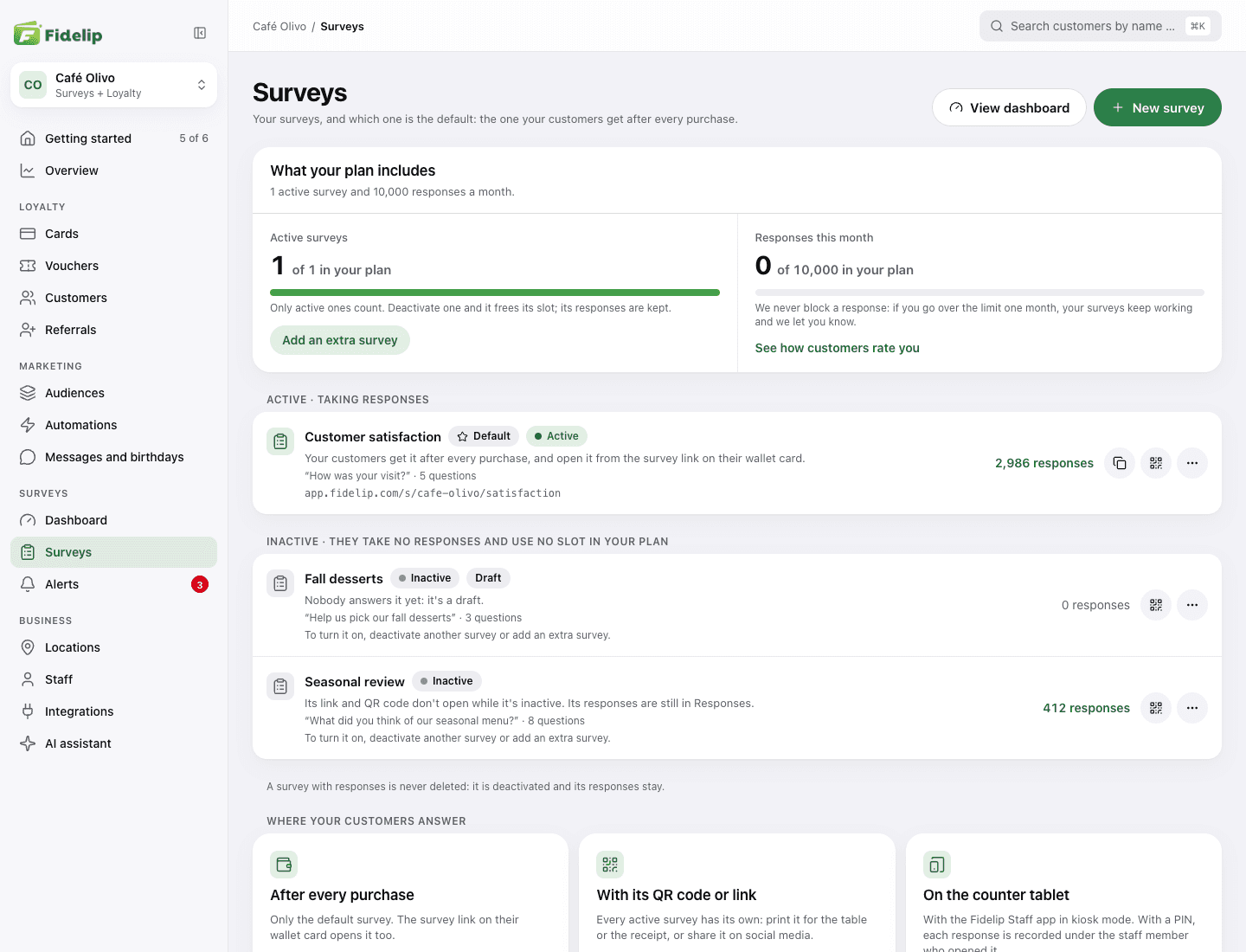
The survey marked Default is the one the customer gets after each purchase you add to their card at the counter, and the one their wallet card's survey link opens. You can only make an active survey with at least one question the default. If you deactivate the default, your customers stop getting a survey after they buy, and the survey link on their wallet card shows “Survey unavailable” until you turn it back on or pick another one.
- Duplicate creates a copy as a draft (inactive), which doesn't count against your plan until you turn it on.
- Deactivate is how you retire a survey: it stops taking responses, its QR code and link stop opening, it frees its slot in your plan, and all its responses stay. You turn it back on in its editor, with the Survey active switch under Availability; if your plan is already using all its active surveys, deactivate another one first or add an extra.
- Delete is only available to the account owner and only for surveys that never received a response: deleting a survey never deletes its responses. You also can't delete the last survey you have. To confirm, you type the survey's name. If you delete the default, the most recent active survey that has questions takes its place, and the notice tells you which; if there is none, you are left with no default survey (nobody gets a survey after buying, and the wallet card link shows “Survey unavailable”).
Automatic emails based on the rating
In Automatic emails (under Survey settings) you set three things: the Question that decides the email (it must be a rating question: stars, faces, NPS or thumbs), the threshold in Counts as a low rating (from 1 to 4, on a 1 to 5 scale) and two optional messages:
- Email for high ratings: a thank-you; a good place to ask for a Google review.
- Email for low ratings: an immediate apology that can win the customer back before they stop visiting (and before the complaint ends up on social media).
They are sent from {your-business}@encuesta.fidelip.com, and only when the response includes the customer's email (and they haven't unsubscribed from your emails) and you wrote the message.
Alert rules
Every survey comes with automatic alerts, with nothing to set up: stars or faces of 2 or less, NPS from 0 to 6 (critical), thumbs down and a scale answer in its lowest 30 %. In the Alerts part you see them in a row of their own with their switch, in case you would rather turn them off.
You can also add your own rules with Add rule, question by question. They add to the automatic ones: adding a rule turns nothing off. If a rule and an automatic alert both match the same response and question, only one alert is created, the most severe.
- On rating questions (or on All rating questions): Less than or equal to / Greater than or equal to a value (for example, “3 stars or less”). On thumbs, a thumbs down triggers the alert.
- On choice and text questions: when the answer Is equal to or Contains a value (for example, contains “cold”).
- Each rule has a Severity, and under Who hears about it you choose who to notify: specific emails and/or a push notification to the team. The push reaches your team's staff app when a response creates a critical or warning alert (Info alerts don't ring), depending on the notification setting each phone has in the app's Settings, and it stops arriving if you turn off Push notification to the team. Each recipient gets a single email per response, with all its alerts and a button to open it in the dashboard.
Alerts show up in Dashboard → Surveys → Alerts and on the Alerts tab of the staff app, so the manager on shift can act while the customer is still there.
Kiosk mode
Kiosk mode turns a tablet into a fixed station where the customer, not a cashier, answers the survey or signs up for the program. Handy to leave by the exit or next to the register.
- Turn on kiosk modeOn the survey's Kiosk and QR tab, switch on Kiosk with PIN. Everyone who will run the tablet needs their own 4-digit kiosk PIN (it is assigned in Dashboard → Staff; see Team and locations): they use it to identify themselves before each survey, so the response is recorded under their name, and to leave the mode. If nobody has a PIN yet, the dashboard tells you (Nobody has a PIN yet) and takes you to Assign a PIN in Staff: do it before you hand over the tablet. With Ask for table number, the person running the tablet also types the table before their PIN, and the response is tied to it (it applies to all your surveys).
- Start the survey on the tabletIn the staff app open the Surveys tab and tap Start survey (or Pick another survey, if you have several). The app goes full screen, with no tabs: the person running it types their PIN on Sign in to start and hands over the tablet. When the customer finishes, New survey gets it ready for the next customer, and Exit kiosk asks for a valid PIN. Without the app, open the Kiosk link (on Kiosk and QR) in the tablet's browser. Details in Surveys tab and kiosk mode.
- Lock the tablet at the system levelOn an iPad use Guided Access (Settings → Accessibility → Guided Access). On Android use Screen pinning or the system's kiosk mode. This keeps a customer from leaving the app by accident.
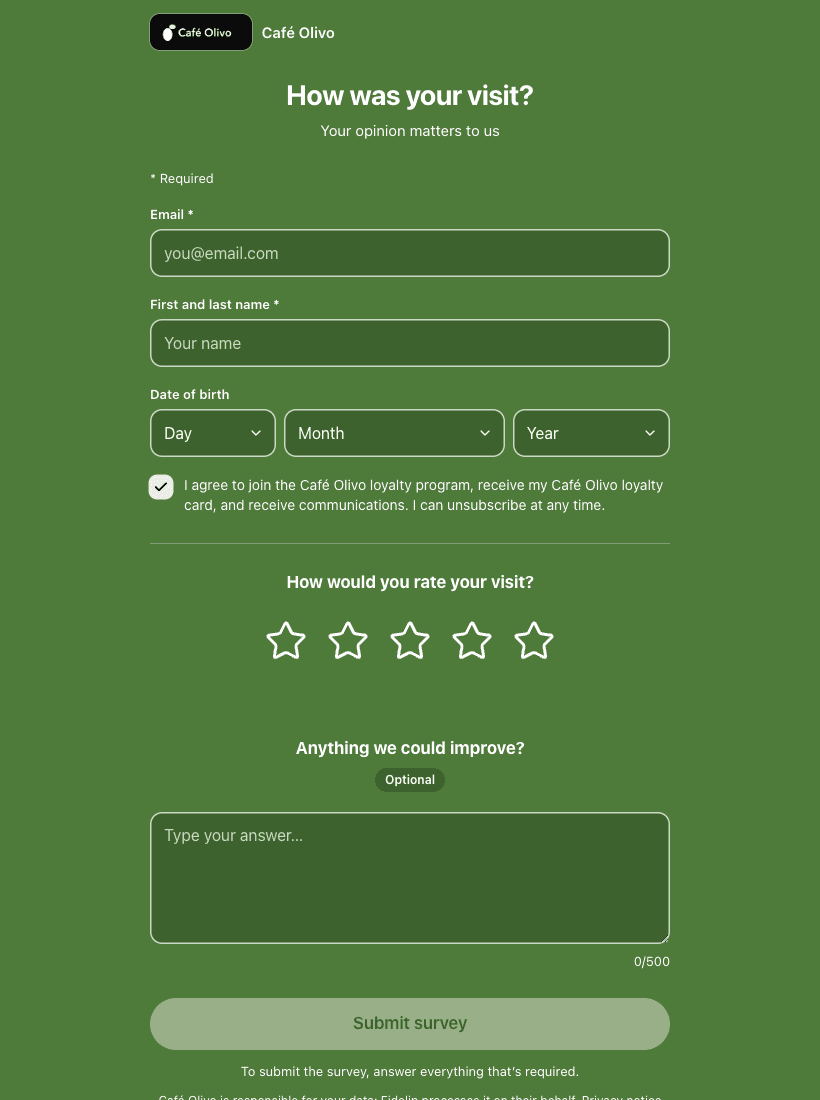
For a kiosk, All questions mode and a survey of 2 or 3 questions work best: the customer is standing and in a hurry. Save the long surveys for the link you send by email.
Reading the results
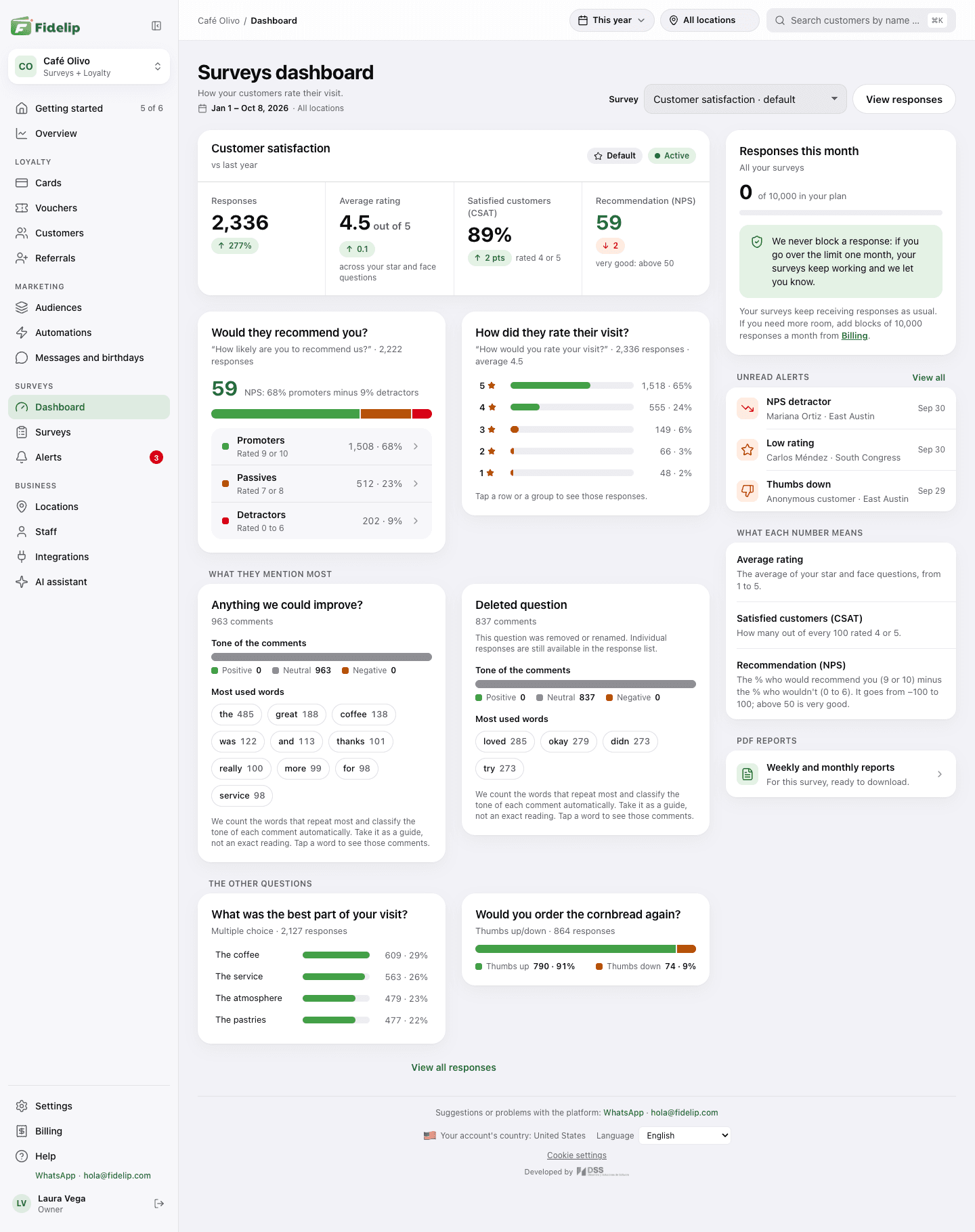
Dashboard → Surveys → Dashboard (the Dashboard item inside the Surveys group of the sidebar) shows how your customers rate their visit, one survey at a time: you pick it in Survey (the page remembers the last one), and you change the period and the location (All locations, or one) in the bar at the top. Four numbers come first: total Responses, average rating, CSAT and NPS, each with its change from the previous period when there are enough responses to compare. Below you see NPS with its breakdown (Promoters, Passives and Detractors), the rating distribution, What they mention most (the most repeated words and the tone of the comments) and a card for each of the other questions. Tap a bar, a group or a word to see exactly those responses. On the side are Unread alerts and What each number means.
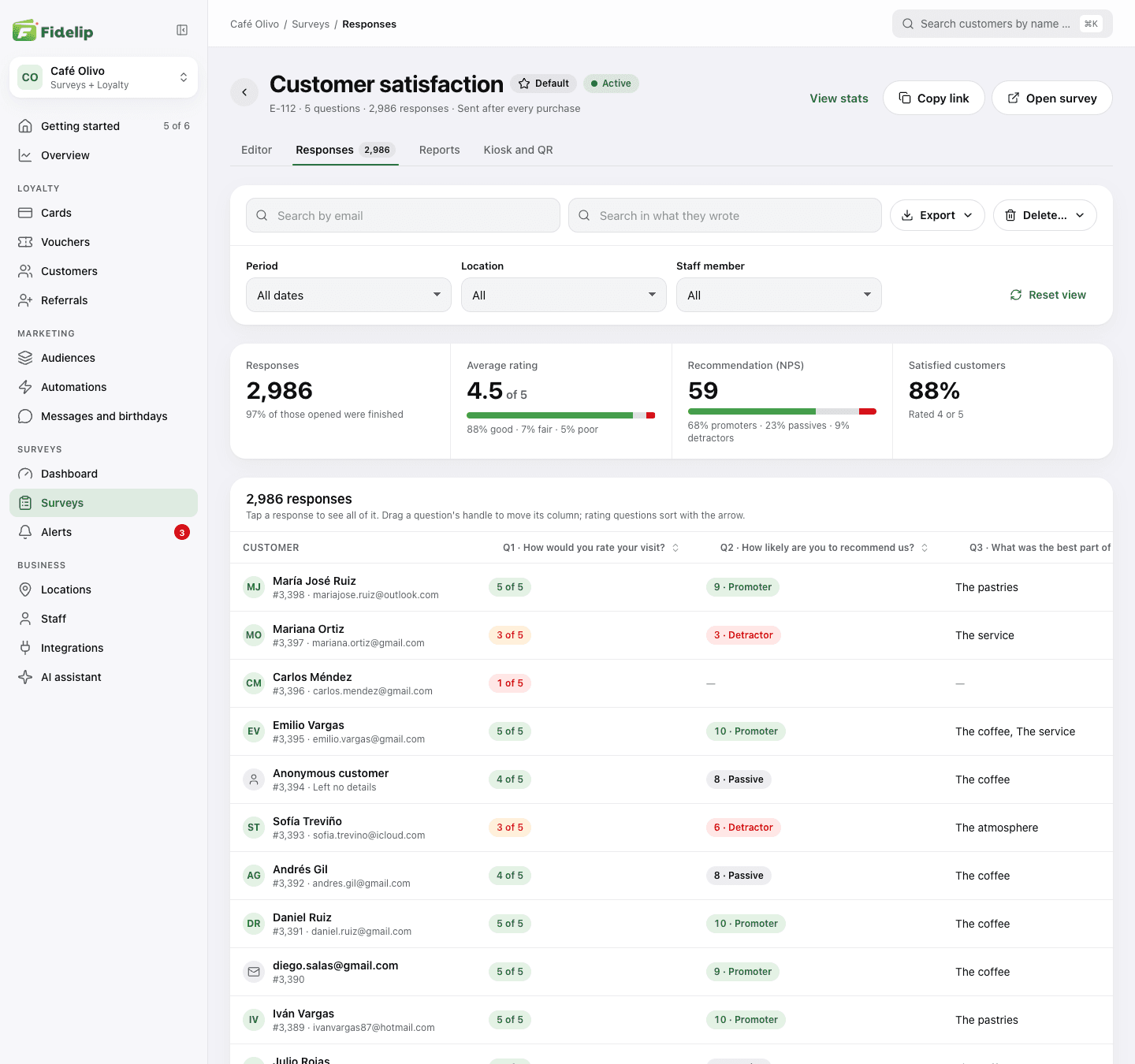
A survey's Responses tab lists every submission. Filter it with Search by email, Search in what they wrote, the Period, the Location (if you have more than one) and the Staff member; the numbers above the table (rating, NPS, satisfaction) follow the period, location and staff member, but not the searches. Each question is a column: drag it by its handle to move it, and rating columns sort with the arrow. Reset view puts filters, sorting and column widths back as they were. Tap a row to open the whole response: what they answered, the details they left and their visit; from there you can Reply by email (the owner or an admin), with your business's name and logo, unless the person left no email or unsubscribed.
The Export menu gives you Download Excel (exactly what the table shows, with filters and sorting), PDF report (full) (every response, with emails hidden) or PDF report (summary) (averages and totals for each question). The Excel file includes emails and what your customers wrote, so only the owner or an admin can download it: they accept that the file is their responsibility and type a 6-digit code that is emailed to them. Staff members don't see the responses; in the counter app they only see the day's numbers.
The Delete… menu deletes responses, and it asks for that code too. You can delete all of them, only the ones from before a date (Delete earlier ones) or, if you have filters on, only the filtered ones. The notice says how many responses will be deleted and from which survey, and any that arrive while you confirm stay. It can't be undone.
On top of that, each survey's Reports tab makes a weekly or monthly PDF (Weekly or Monthly, then Download PDF) with the period's summary, handy for meetings or to send the owner every Monday.