
Set up Fidelip with your AI assistant
You can connect Fidelip to an AI assistant and ask for things in plain language: “create an 8-stamp card for a free coffee”, “change my card color to forest green”, “how many new customers did I get this month?”. With a key that allows changes, the assistant makes them in your account and tells you what it did.
It works with assistants that support MCP (Model Context Protocol) and accept a key: today, Claude Code, Cursor and VS Code with GitHub Copilot. These are developer tools. Connecting one means copying a key and pasting a block of text, but you need to be comfortable opening a terminal or a configuration file.
Chat apps (Claude on the web, desktop or phone, ChatGPT, Gemini and Grok) cannot connect yet. They ask you to sign in with your account on the service, or they do not accept custom servers, and Fidelip does not offer that sign-in yet. Details in Claude, ChatGPT, Gemini and Grok.
Connect it in 3 steps
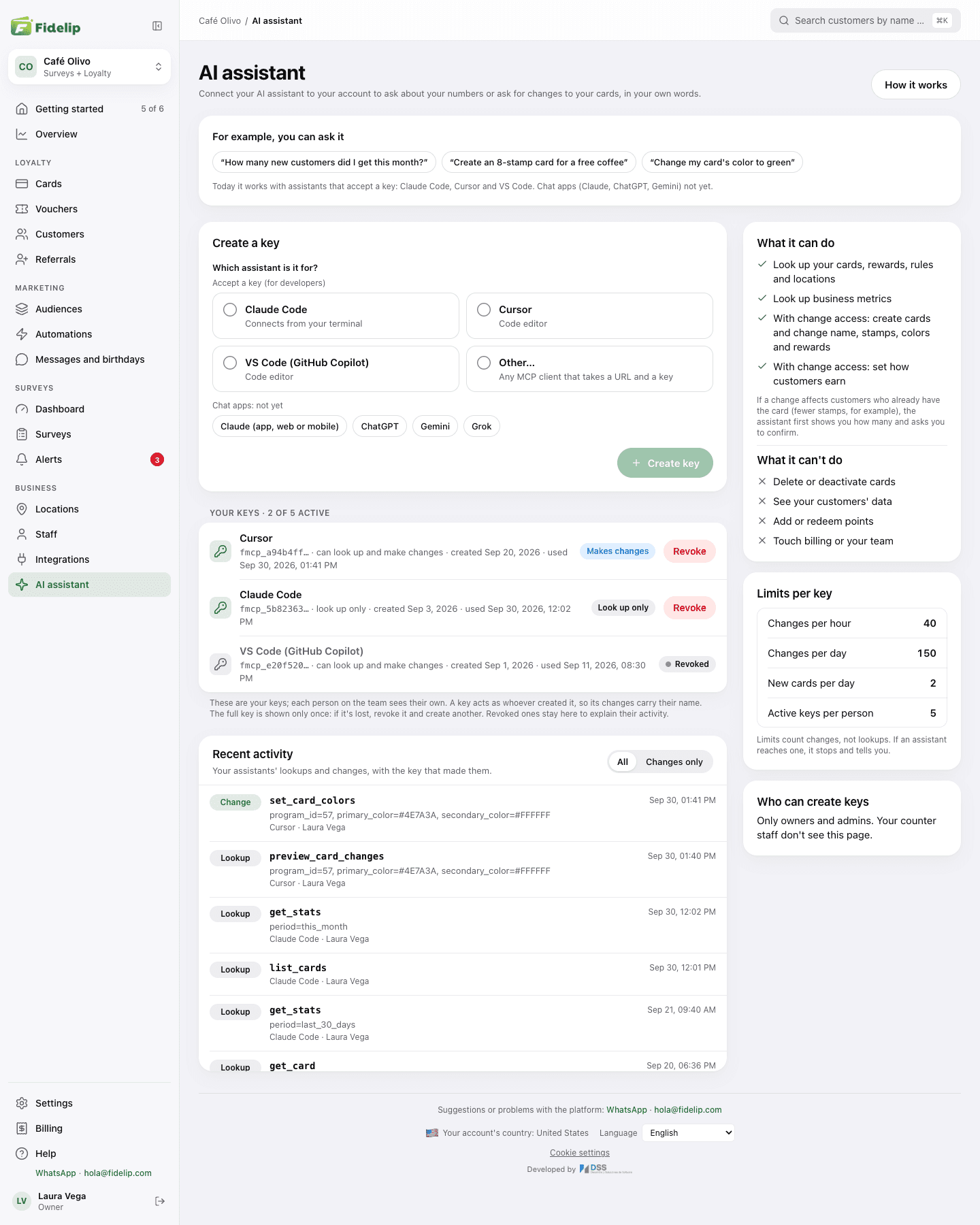
- Create your keyGo to Dashboard → Business → AI assistant (on a phone, from More), or straight to app.fidelip.com/dashboard/agente. You can also find it in your account menu (your name, bottom left) → Connect your assistant. Choose which assistant it is for: Claude Code, Cursor, VS Code (GitHub Copilot) or Other… (there you type a name in Assistant name so you can recognize the key). Then choose what it can do: Look up only (the option marked Recommended) or Look up and make changes. Press Create key: it stays off until you choose the assistant. Only the owner and admins can create keys, and each person has a cap on active keys: if you reach it, revoke one before creating another. This page opens even if you have no card yet: the assistant can create the first one.
- Copy the keyIt appears in a window, Your key is ready, and looks like this:
fmcp_a1b2c3…. It is shown only once: for security, it is not shown again. Copy it with Copy and, once you have saved it, press I've saved it, close. If you lose it, revoke it from that same page and create another. Treat it like a password. - Paste the configuration into your assistantThe exact block for each client is below. The same window shows it with your key already filled in, under Connect it: the one for the assistant you chose comes first, and Copy configuration copies the whole block. It also reminds you whether the key is look-up only or can make changes. Then restart the assistant.
The configuration, by client
Replace YOUR_KEY with the key you copied. The server is always the same: https://api.fidelip.com/mcp.
Claude Code
One command in the terminal:
claude mcp add --transport http fidelip https://api.fidelip.com/mcp \
  --header "Authorization: Bearer YOUR_KEY"
Cursor
Open the file ~/.cursor/mcp.json (or .cursor/mcp.json inside your project). If it is empty, paste the whole block. If it already lists other servers, add only the "fidelip" part inside "mcpServers":
{
  "mcpServers": {
    "fidelip": {
      "url": "https://api.fidelip.com/mcp",
      "headers": {
        "Authorization": "Bearer YOUR_KEY"
      }
    }
  }
}
VS Code (GitHub Copilot)
Open the Command Palette and run MCP: Open User Configuration (or create .vscode/mcp.json in your project). Add the "fidelip" part inside "servers" and use it from Copilot Chat:
{
  "servers": {
    "fidelip": {
      "type": "http",
      "url": "https://api.fidelip.com/mcp",
      "headers": {
        "Authorization": "Bearer YOUR_KEY"
      }
    }
  }
}
Claude, ChatGPT, Gemini and Grok (not yet)
The dashboard lists them under Chat apps: not yet. If you pick one, it tells you it cannot connect with a key yet and does not create one.
Claude (on the web, the desktop app or your phone) connects remote servers from “Connectors → Add custom connector”, and there it asks you to sign in with your account on the service. Fidelip does not offer that sign-in yet, so for now Claude cannot connect with a key. The claude_desktop_config.json file does not work either: it only starts servers that run on your own computer, not servers on the internet like Fidelip's.
There is one exception being tested: Anthropic is showing some accounts a Request headers section in that same “Add custom connector” box. If you see it, you can use your key. Enter the URL https://api.fidelip.com/mcp, choose the option without sign-in (No sign-in) and add a header named authorization with the value Bearer YOUR_KEY (the word Bearer, a space and your key). On a Claude Team or Enterprise plan, an administrator adds that connector for the whole organization, so everyone would be using your key. A Look up only key is the right choice there.
ChatGPT only connects servers that use sign-in or have no protection at all, and it does not accept keys. The Gemini app does not let you add your own servers. Grok is in the same list in the dashboard and cannot connect for now either. If you need one of these, write to us: when Fidelip offers sign-in, we will announce it in What's new.
Other clients
Any other MCP client that accepts a URL and an authorization header works (in the dashboard, Other…). These are the three details it will ask for:
URL:             https://api.fidelip.com/mcp
Transport:       HTTP (streamable)
Authentication:  Authorization: Bearer YOUR_KEY
Check that it worked
Restart the assistant and ask it for something read-only, for example “what loyalty cards do I have in Fidelip?” If it answers with the real names of your cards, you are connected, and its lookup shows up under Recent activity, on the same dashboard page. If it says it has no access or cannot find the tool, check If it will not connect.
New keys come as Look up only. You can ask it anything and there is no way for it to change anything: if you ask for a change, it will tell you it does not have permission. When you feel comfortable, create another one with Look up and make changes.
What it can and cannot do
The list of what it cannot do is short on purpose and cannot be configured: those actions simply do not exist on the assistant's side, so no error and no odd instruction can trigger them.
With a Look up only key it can do what the rows marked “lookup” describe; with Look up and make changes, everything in the first column.
| Can | Cannot |
|---|---|
| See your cards, rewards, rules, tiers and locations (lookup) | Delete or deactivate a card |
| Look up business metrics (lookup) | Change the type of an existing card |
| Create a new card (within the cards your plan includes) | See, export or modify your customers' data |
| Change the name, number of stamps and points goal | Add or redeem points and stamps |
| Change the card colors | Send notifications or vouchers |
| Create and edit rewards | Touch your billing or your plan |
| Set how customers earn (per visit, per item or per amount) | Create, edit or delete your team's accounts |
The logo, the banner and the stamp icons are uploaded from the dashboard (Dashboard → Cards → Design), not through the assistant, because they are files and you should see the preview before publishing them.
If it will not connect
| What you see | What to check |
|---|---|
| “I don't have access to Fidelip”, or the tool does not show up | The assistant did not reload its configuration. Close it completely and open it again (in Cursor and VS Code, closing the chat tab is not enough). |
invalid_token | The key is miscopied, has spaces, or was revoked. Create a new one in the dashboard and paste it in full, including the fmcp_ prefix. |
token_expired | The key is more than a year old: keys expire a year after they are created. Create a new one and swap it into your assistant. |
missing_token | The authorization header is missing, or it is written without the word “Bearer ” before the key. |
Esta llave no tiene el permiso «cards:write» | The key is Look up only. Create another one and choose Look up and make changes. (Fidelip writes its messages to the assistant in Spanish; your assistant may translate them.) |
Tu plan incluye … tarjeta(s) activa(s) y ya las estás usando | Cards the assistant creates count toward the cards in your plan. Deactivate one you no longer use in Dashboard → Cards, or add an extra card in Dashboard → Billing (only the owner sees it; see Extras), then ask for the card again. |
| It answers with another business's data | This cannot happen: the business is taken from the key. If you see it, write to us. |
To confirm the server is up, you can open https://api.fidelip.com/mcp/health in your browser: it should answer {"ok":true,…}. That address does not ask for a key.
Security
| Protection | How it works |
|---|---|
| The key is yours, not the business's | It acts with your permissions and everything it does is recorded under your name. Only the owner and admins can create keys, and each person sees only their own. |
| It never picks the business | The business is taken from the key. There is no way for the assistant to touch anyone else's account, by mistake or on purpose. |
| Confirmation for delicate changes | Changing the number of stamps on a card makes the assistant show you first what changes and how many customers it affects, and ask for your OK. |
| Rate limits | Each key has a cap on changes per hour, another per day and another on new cards per day, and each person has a cap on active keys, so an assistant stuck in a loop cannot cause a disaster. They count changes, not lookups: when one is reached, the assistant stops and tells you. The numbers are on the Limits per key card of the page. |
| Visible log | The Recent activity section lists what the business's assistants have done, lookups and changes, with the date, the detail, the key's name and the person it belongs to. Changes only shows just the modifications; All, every row. |
| Immediate revocation | Press Revoke next to the key and confirm with Revoke key: access is cut right away, without waiting for it to expire. What it already did is not undone, and the key stays in your list, marked revoked, to explain its activity. |
Treat the key like a password: do not paste it into a group chat, a shared document or a screenshot. If you think it leaked, revoke it from the dashboard: it takes one click and a confirmation, and it takes effect immediately.
How to ask for things
Assistants work better with business context than with technical instructions. Instead of “set stamp_card_size to 8”, tell it “I sell coffee and I want the eighth one free” and let it translate. Two things help:
- Ask it to read your current setup before it changes anything. It is the fastest way to confirm it is connected to the right account.
- When it shows you warnings (for example “12 customers are partway through their card”), read them. They are there because the change affects real people who already carry your card on their phone.
Available on every plan that includes a loyalty program. If something does not work when you connect it, write to us at [email protected] with the name of the assistant you are using.