
Automations
An automation is a rule that stays on: when a customer does something (buys for the first time, moves up a tier, redeems a reward) or stops doing something (stops coming, signs up and never buys, drops a tier), Fidelip sends what you set up (an email, a message on their card, a voucher, or a gift of points or stamps) without anyone having to remember. It lives in Dashboard → Automations. Only the owner or an admin can create, change or pause them; a staff member can only see the list.
Click New automation (or start from a template, below) and an editor opens at the side. There you enter an Internal name (only you see it) and go through three steps: 1 · When it's sent (the trigger), 2 · Who gets it (card, segment and tier) and 3 · What it does (email, card message, gift and voucher). The sections below explain each step in that order. The Create automation button (Save changes when you edit one) stays off until the name, the trigger and the message are filled in, and a line under it says what is missing. Nothing is sent until you save the automation as active, and if you close the editor with unsaved changes it asks before discarding them.
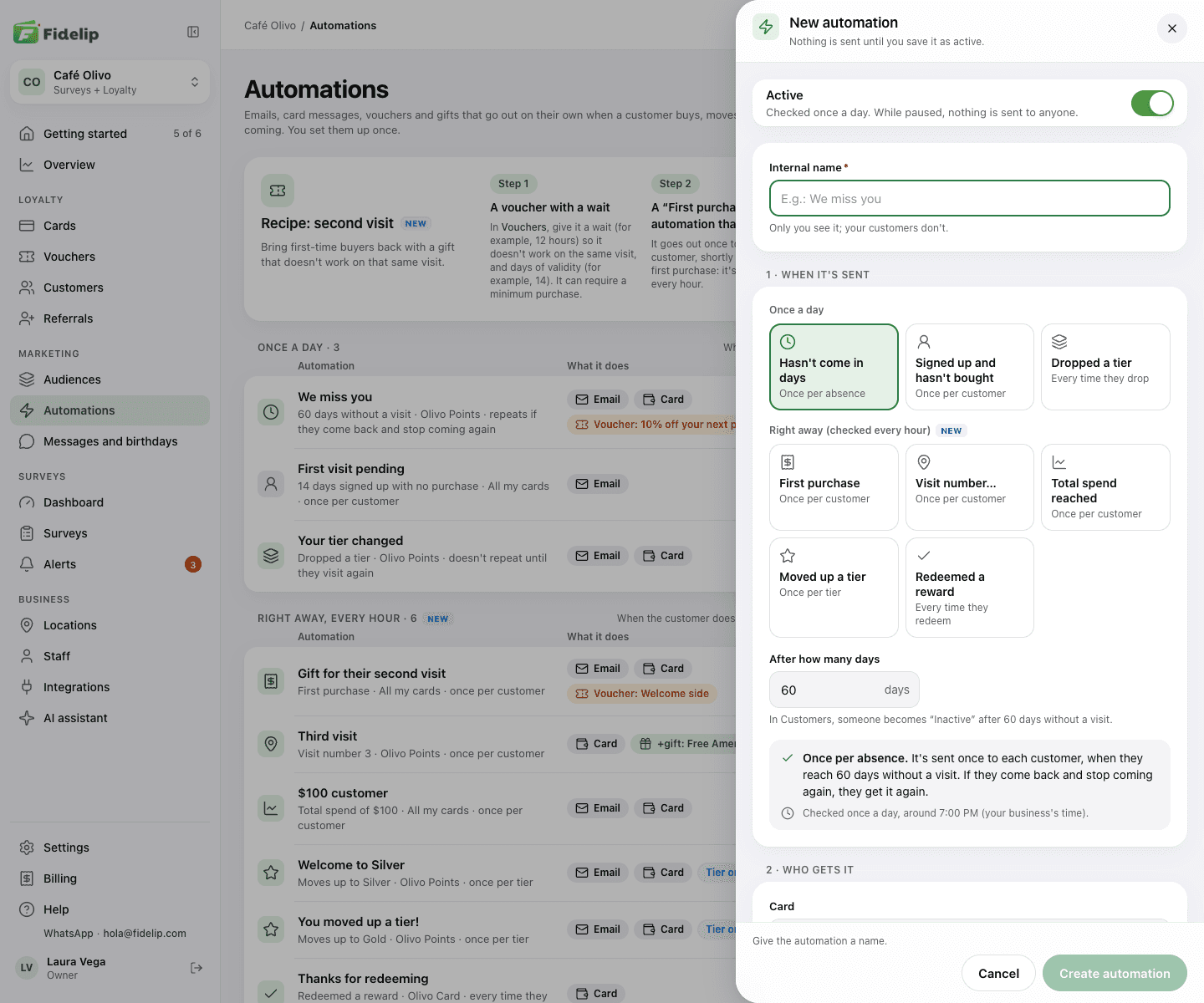
The eight triggers
Every automation hangs on a trigger, which you choose in step 1 · When it's sent. There are eight, in two groups according to when Fidelip checks them. The three under Once a day are checked once a day, around midnight UTC (the editor shows that time in your business's time zone). The first two are measured in days (you choose how many); the third has no number because it simply happens.
| Trigger | When it applies, and how often |
|---|---|
| Hasn't come in days | The customer has come in at least once, but their last visit was N days ago or more: you set N in After how many days. It is the classic “we miss you.” At 60 days it matches the point where Fidelip counts a customer as inactive. Once per absence: if they come back and stop coming again, they get it again. |
| Signed up and hasn't bought | The customer signed up N days ago or more and has never come in. It wins back people who joined and never returned. Once per customer. |
| Dropped a tier | Fires when the customer loses their tier for inactivity (chapter 07), on the automation's card. It has no number of days: the event is the trigger. It does not repeat until the customer comes back, and never within 30 days. |
The five under Right away (checked every hour) react to something the customer does at the counter. Every hour Fidelip looks at what is new, but it only counts what happens after you turn the automation on (or change its trigger): it never writes to someone who had already done it. If the automation belongs to a card, only that card's purchases, tier-ups and redemptions count.
| Trigger | When it applies, and how often |
|---|---|
| First purchase | After the customer's first purchase. Once per customer. |
| Visit number… | On the purchase you choose in Visit number (2 = their second purchase, 5 = their fifth). A visit only to redeem does not count. Once per customer. |
| Total spend reached | When their purchases add up to the amount you type in Total spend, in your business's currency. Once per customer. |
| Moved up a tier | When the customer moves up to a tier. Once per tier: if they drop for inactivity and win it back, it is not sent again. |
| Redeemed a reward | Every time the customer redeems a reward or completes a stamp card. Redeeming a membership card benefit does not count. |
For the triggers measured in days, a visit is something the customer did at the counter: a purchase that was not undone, or a redemption. A manual bonus, a birthday gift or an automation's gift does not count, and the visit can be with any of your cards. For the ones checked every hour, a purchase is what your team records at the counter (a scan, or an add without QR) once 10 minutes pass without it being undone; a redemption is not a purchase.
One card per automation
Every automation belongs to one card, which you choose in the Card field of step 2 (a new one starts on your first card): only customers who have it receive it, the notification appears on that card and the gift is added there, in its unit (stamps or points). If you have several cards you can choose All my cards: it goes to all your customers and the message appears on every card they have, but with no gift of points or stamps (a voucher does work, because it needs no card).
- Automations you created before cards could be chosen stay on All my cards, with their gift if they had one, even if you edit them. The editor reminds you; once you choose a card, it only goes to customers who have it.
- If you deactivate a card, its automations wait with it: nothing is sent and nothing is given until you reactivate it. In the list the card appears as “(paused).”
- If you delete a card for good, its automations are deleted with it; the confirmation window tells you which ones before you delete.
Email and card message
In step 3 · What it does you choose where the message goes with two switches. Both start on, and you need at least one.
| Switch | What the customer gets |
|---|---|
| An email with the subject and message you wrote. It only goes out if you have the customer's email, that address can receive mail (it did not bounce) and they have not unsubscribed from your emails. | |
| Message on their card | A notification on the digital card the customer already has in Apple Wallet or Google Wallet. It only arrives if they have added the card to their phone's wallet. |
- The Email subject (optional) only applies to the email. If you leave it empty, we use a generic one with your business name.
- The Message is the same text in the email and on the card, so keep it short: up to 100 characters so it reads in full in the card notification. The character counter is under the field.
- In Europe and Canada, the email and the card message only reach customers who agreed to receive promotions that way; the gift and the voucher go to everyone.
Narrow the audience
By default an automation applies to Everyone who qualifies for its trigger. You can narrow it with two filters in step 2 · Who gets it; both add to the trigger, so the customer has to meet everything:
- Segment (optional): one of your audience segments (chapter 08); it only fires for customers in it. The selector shows how many customers each segment has today.
- Tier (optional): a tier of the card (chapter 07). What it means depends on the trigger: with Dropped a tier, customers who drop to that tier; with Moved up a tier, those who move up to it; with the others, customers who are in that tier today. It does not appear on Signed up and hasn't bought, because someone who never bought has no tier. If that tier no longer exists on the card, the editor flags it and will not let you save until you pick another or Any tier.
In Dashboard → Audiences, each segment has a Create automation button: you land in the editor with that segment already selected. You still need to give it an Internal name and write the Message; the save button stays off until you fill both, and a line below tells you which one is missing.
Give a reward
The message can come with a real nudge. Turn on Give points or stamps and choose a reward from the automation's card (the selector shows its cost in stamps or points; you need to have chosen a card that has rewards). When the automation fires:
- We add exactly the reward's costIf the reward costs 8 stamps, the customer gets 8 stamps on that program's card, no more and no less.
- The customer can redeem it right awayThey show up at your counter and your team redeems the reward like any other, from the staff app.
- It is recorded in their historyThe credit shows up as one more movement on their card, with a note saying which automation made it.
The gift is added together with the message and as often as the automation itself. With Hasn't come in days that is once per absence: while the customer does not come back they are not credited again, and if they come back and stop coming again, they get the message and the gift again.
With Dropped a tier, be careful with the gift: what you give counts toward their tier, so it puts them straight back on the tier they just lost.
Send a voucher
An automation can also give the customer a voucher from Dashboard → Vouchers (chapter 11), alone or together with a gift of points or stamps. Turn on Send a voucher and choose one in Voucher (active vouchers are listed; if you do not have one yet, create it first under Vouchers). It needs no card, so it also works with All my cards. Each time the automation fires, Fidelip issues the customer one copy:
- The redemption conditions (minimum purchase, locations, number of uses and wait) are the voucher's. To change them, use Change this voucher's conditions, under the selector.
- Expires after N days: how long each copy lasts, counted from when the customer receives it. Empty = the voucher's own validity. If the voucher has a wait (for example, 12 hours before it can be used), the validity has to last longer than that wait, or the editor will not let you save.
- It goes by email, with your subject and message (a single email). If the email cannot go (no address, unsubscribed, no consent to promotions, or you ran out of email credits) or Email is off, the code shows on their card, under your message. They can always see it in their portal and at the counter too.
- If the voucher can no longer be issued (you deactivated it, or the customer already has every copy it allows), nothing is sent that time, because your message announces the voucher; the gift of points or stamps, if there is one, is still credited. While an automation points to a deactivated voucher it cannot be saved: pick another or No voucher.
The most requested one is the Recipe: second visit, the card above the list: bring first-time buyers back with a gift that does not work on that same visit. It takes three steps. A voucher with a wait (for example, 12 hours) and days of validity (for example, 14); a First purchase automation that sends it, once to each customer shortly after their first purchase; and the redemption when they come back: at the counter, the app checks that the voucher already works, has not expired and meets the minimum purchase. Use this recipe opens the editor with A gift for their next visit already set up: you only choose the voucher. If you already have one like it, the card says You already use it and See how it's set up opens it.
Templates, the list and how often
While you have no automations, the screen offers Start from a template: five ready to edit, and From scratch.
- We miss you: hasn't come in days · 60 days · email and card.
- First visit pending: signed up and hasn't bought · 14 days · email only.
- Your tier changed: dropped a tier · no number of days · email and card.
- A gift for their next visit: first purchase · email and card · with a voucher valid for 14 days (the recipe above).
- Moved up a tier: moved up a tier · email and card.
The numbers and the texts are a starting point: when you pick a template the editor opens with everything filled in, and you can change whatever you like before saving.
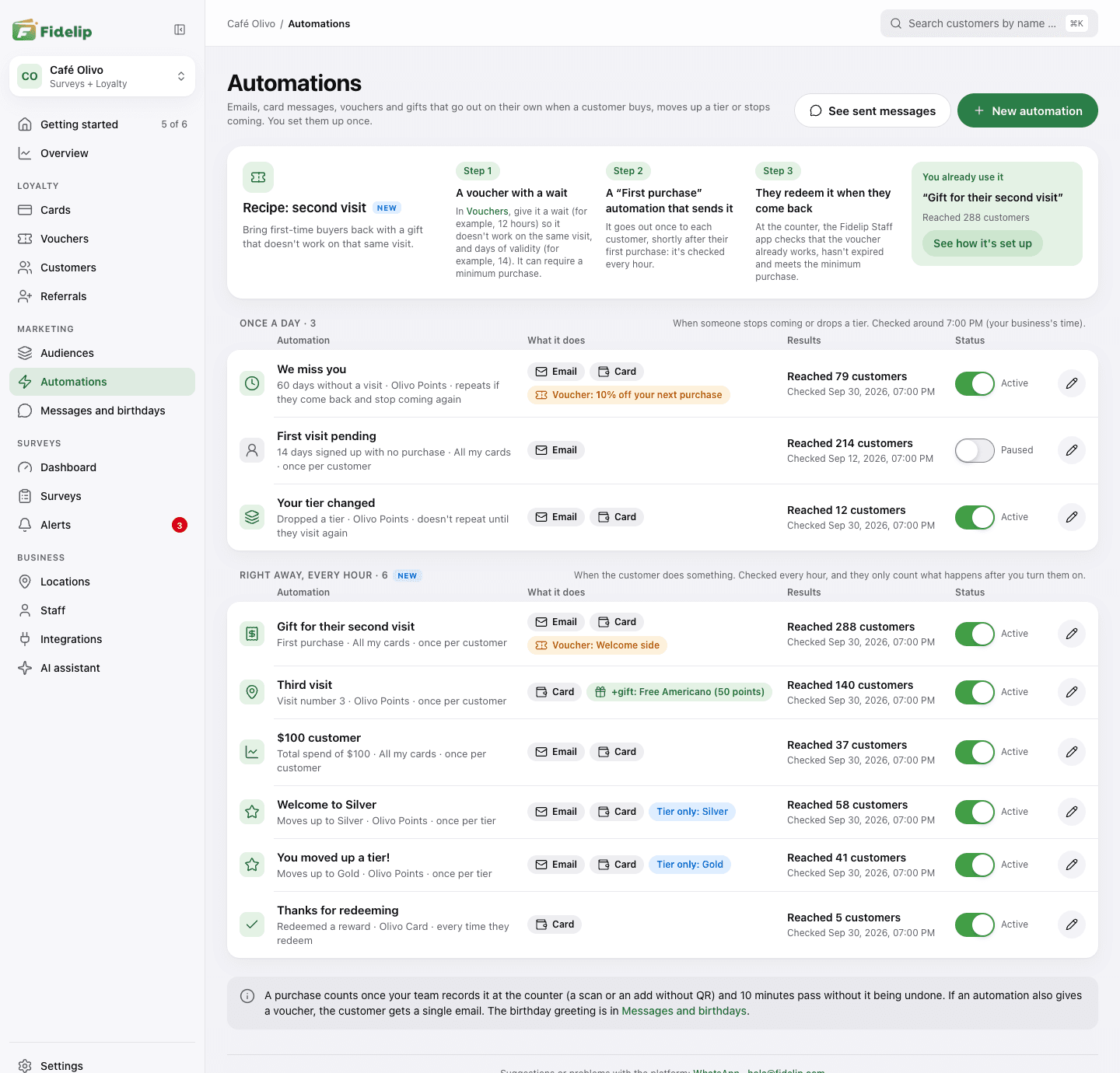
Once you have automations, the list splits them into the two groups of step 1. Each row tells you what triggers it and on which card, what it does (the Email and Card badges, the voucher, the gift and the tier or segment it is limited to), how many customers it has reached (by email or on their card; someone with neither does not count) and when it was last checked. The switch on the row, which reads Active or Paused, turns it on or off without deleting it and saves at once. The pencil opens the editor, where Delete is too: it stops sending and its count is removed, but what your customers already received does not change; if you only want to stop it for a while, pause it instead. See sent messages, at the top, opens the list of automatic messages in Dashboard → Messages and birthdays (chapter 09).
For the ones measured in days, before you save the editor tells you how many customers meet the condition today and how many it would reach, by channel: “312 customers meet the condition today; it would reach 280 (250 by email, 120 on their card).” It is the same count the daily send uses, with the same rules (the email, the installed card and, in Europe and Canada, permission for promotions). If the second number is lower, it tells you why the rest are not reached. The ones checked every hour show no number: they go out the moment it happens.
The ones under Once a day go out in the next daily send, which runs every day at the same time; the editor tells you whether that is today or tomorrow and at what time in your time zone. The others are checked every hour. When you turn on one that was off, the screen asks you to confirm with Activate: for the ones measured in days it tells you how many it would reach, because everyone who already meets the condition gets it in that send; for the ones checked every hour it reminds you that only what happens from that moment counts. If you save it paused (with Active off), nothing is sent. The number of days can go from 1 to 3,650 (10 years).
An automation measured in days reaches each customer only once while they keep not coming in. If they come back (earn or redeem) and later stop coming again, they get it again. The Dropped a tier one does not repeat until the customer comes back either, and never within 30 days. The ones checked every hour never look back: if you turn on First purchase today, it does not write to anyone who already bought before.